
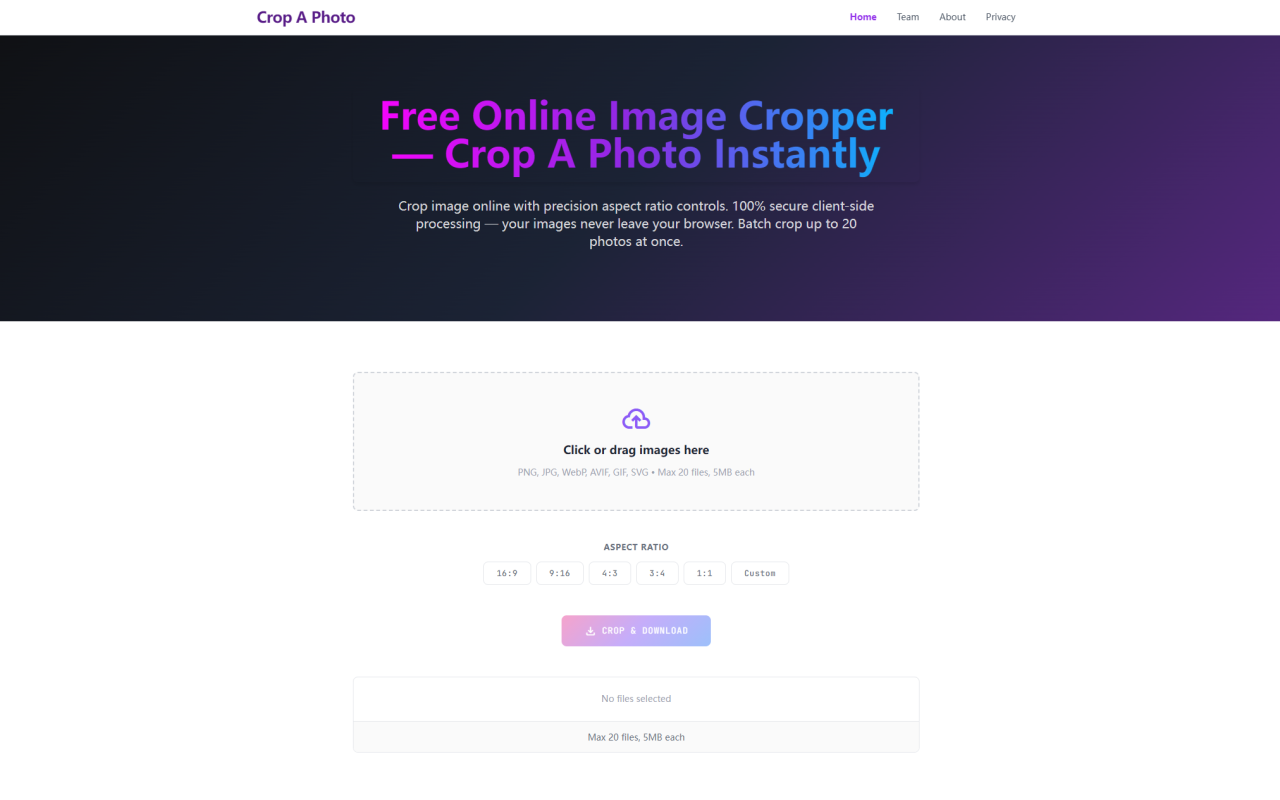
Image cropping is usually the kind of task you don't think twice about—until you need to process twenty product shots at once or you're about to upload a batch of client mockups to a third-party server you don't trust. Crop A Photo sits neatly in that gap. It's a free, browser-based bulk image cropper built by the 345tool collective that processes everything locally on your device. No upload, no server queue, and no account required.
First Impressions: A No-Frills Drop Zone
Upon visiting the site, the first thing you notice is how sparse it is—in a good way. There's a single large dropzone in the center of the page, a banner ad above the title, and nothing else vying for your attention. The interface labels itself as a "Secure, Framework-Free In-Browser Bulk Image Cropper" and immediately invites you to drag files in. Clicking the dropzone opens your file picker, but you can also simply drag and drop images straight from your desktop.
Below the dropzone, the tool clearly states its limits: PNG, JPG, WebP, AVIF, GIF, and SVG files, up to 20 files at 5MB each. There's no signup, no email capture, and no onboarding tour. You load the page, drop your files, and you're already working.
What Sets It Apart: Truly Client-Side Processing
The headline feature here is that your images never leave your device. Crop A Photo runs all processing locally in your browser using HTML5 Canvas. When the FAQ describes an "air-gapped data isolation protocol," it's not being dramatic—the tool genuinely functions even if you disconnect from the network after the page loads.
In practice, this means a few nice things. There's no waiting on a server to process your batch, no risk of your visual assets being stored on someone else's infrastructure, and no queue lag when multiple people use the tool at once. The page itself is notably light—there's no framework bloat, and the tool is ready to use the moment it loads. For professionals handling unreleased product renders, internal presentations, or design assets under NDA, this is a meaningful privacy advantage over conventional cloud-based croppers. The site explicitly calls out this scenario, noting that traditional tools force creators to transmit proprietary materials to remote hosts.
Aspect Ratios, Formats, and the Batch Workflow
When testing the workflow, I found the crop options straightforward. The tool offers five standard presets—16:9, 9:16, 4:3, 3:4, and 1:1—plus a custom dimension field for anything in between. You select your aspect ratio once, and it applies uniformly across your entire batch. That's the core use case: you're not fine-tuning each image individually, but normalizing a directory of assets to a consistent frame.
The circle and square cropping modes deserve a mention here. The button labels show "Square Image Cropper" and "Circle Image Cropper" modes, which produce rounded avatars or clean square e-commerce images. The site emphasizes that circular crops use device pixel ratio (DPR) recalculation to preserve anti-aliasing on high-density displays—a technical detail that usually separates a usable avatar cropper from one that produces jagged edges.
I also want to note the 5MB-per-file and 20-image limits aren't arbitrary. Since everything runs in-browser, large batches can exhaust local memory. The FAQ explains this threshold keeps your tabs from freezing during heavy rendering. It's a reasonable trade-off for a free tool that promises no server involvement.
The Download Experience: No ZIPs, Just Files
Here's where Crop A Photo departs from most bulk croppers. After you hit "Crop & Download," the browser loops through your completed images and triggers individual downloads for each file, rather than bundling everything into a ZIP archive. On the surface, this seems like a minor detail. But the FAQ makes a compelling point: many users—especially on mobile—don't have reliable archive extraction tools, and ZIP paywalls are a real annoyance. Getting each cropped file directly into your downloads folder is frictionless.
The downside is that you'll get multiple separate files in your download history rather than one tidy folder. If you're processing 20 images, that's 20 individual download prompts. On desktop, most browsers handle this gracefully and just dump them into your default download directory. On mobile, some browsers may ask for confirmation on each file, which gets tedious for larger batches. It's a small trade-off for the simplicity the tool advertises.
Pricing, Privacy, and the Fine Print
Crop A Photo is completely free. There are no pricing tiers, no premium plan, and no registration to unlock features. When testing the free plan, I never hit a paywall or a feature gate—every aspect ratio preset, the custom field, batch upload, and the crop-and-download pipeline were available without any upsell prompts. The site is monetized through non-disruptive banner ads placed above the title, and the team states it avoids tracking telemetry cookies and popups. That's a refreshingly honest business model for a free utility.
Pricing details are not publicly listed because there is no paid product—everything is available to everyone, with the only constraints being the technical limits of 20 files and 5MB per file. The project is maintained by the 345tool team, an open-source-aligned collective that describes itself as building lightweight, privacy-first web utilities. The tool page does not include a feature roadmap or changelog, but the FAQ does mention that ads will eventually transition to contextual B2B link partnerships, so the long-term sustainability model is at least transparent.
Who Should Use Crop A Photo
Crop A Photo is best suited for anyone who needs to normalize a batch of images to a standard aspect ratio quickly and without leaking files to a server. E-commerce sellers prepping product shots into uniform 1:1 squares, social media managers resizing content for multiple platforms, and designers handling confidential client assets will all find genuine value here. The individual download flow also makes it handy for quick one-off crops when you don't want to open a heavyweight editor.
It's less ideal if you need per-image custom crops, extensive editing beyond aspect ratio adjustments, or if you regularly work with files above 5MB. There's also no output format selection—you get the files back in their original format—and no preview grid with per-image toggles. The tool does one thing, and it does it within a deliberately constrained scope. For a free, privacy-first utility, that focus is a strength rather than a limitation.
Visit Crop A Photo at https://cropaphoto.com to explore it yourself.


댓글