

First Impressions and Onboarding
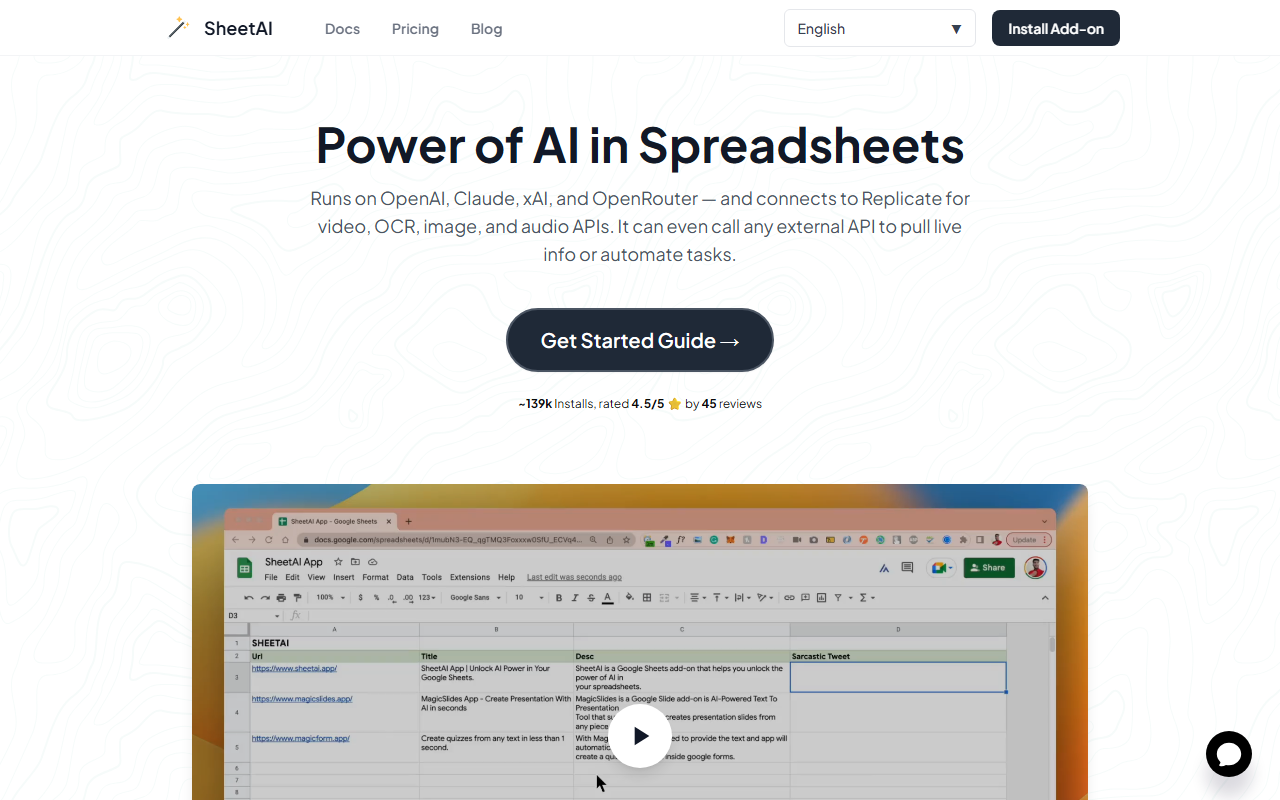
Upon visiting the SheetAI website, I was immediately drawn to the clean, functional layout that demonstrates exactly how the add-on works inside Google Sheets. The page shows live examples of AI functions generating taglines, extracting company names, and classifying sentiment from text. With over 139,000 installs and a 4.5 out of 5-star rating from 45 reviews, the tool already has a solid foundation. I clicked the Get Started Guide to install the add-on from the Google Workspace Marketplace. The process took under a minute: authorize the add-on, open a Google Sheet, and the functions appeared in the formula bar. No complex setup or API keys needed.
Core AI Functions and Real-World Testing
SheetAI offers six main functions that run on top of a large language model directly inside your spreadsheet. I tested several of them in a fresh sheet. The =SHEETAI() function generates any text from a prompt. I typed =SHEETAI("Write a product description for wireless earbuds") and got a polished sentence about premium sound and freedom. The =SHEETAI_LIST() function creates structured lists. I used =SHEETAI_LIST("blog post ideas about remote work", 5) and received five relevant, numbered ideas. For data extraction, =SHEETAI_EXTRACT() pulled “Acme Corp” from a sample email text when I specified “company name.” Sentiment classification with =SHEETAI_CLASSIFY() correctly tagged “Absolutely love this product!” as “Positive.” The =SHEETAI_FILL() function auto-completed columns; I gave it a list of countries and it filled in capitals and currencies. Finally, =SHEETAI_SUMMARIZE() condensed a mock earnings report into one concise sentence. Each function worked on the first try, and the responses felt natural and accurate.
Pricing, Integration, and Market Positioning
Pricing is not publicly listed on the website, but the tool does offer a free tier to get started. You can install it and begin using the functions immediately without entering payment details. SheetAI integrates seamlessly with Google Sheets as an add-on, meaning there is no coding, no separate web app to manage, and no export/import hassle. In the market, it competes with other AI productivity tools like ChatGPT (through manual copy-paste) and GPT for Sheets, another add‑on. Unlike those, SheetAI bundles multiple ready-made functions—particularly extraction, classification, and fill—that reduce the need to write custom prompt chains. However, its reliance on an internet connection and Google Sheets means offline work isn’t possible, and the limited number of reviews (45) suggests a relatively small user base compared to more established tools. The tool seems to be built by a small team, but the documentation and demo examples provide enough guidance for most users.
Who Should Use SheetAI and Final Verdict
SheetAI is best suited for marketers who need ad copy and taglines at scale, data analysts who classify and clean messy datasets without code, content creators brainstorming blog topics and outlines, and HR professionals drafting job descriptions. If you work primarily in Google Sheets and want to leverage AI without leaving your spreadsheet, this add‑on saves hours of manual work. On the downside, the function set is still evolving—you won’t find advanced data modeling or custom model training. And because the AI responses can vary, sensitive or critical data should be double-checked. For a free trial, it’s worth installing. Visit SheetAI at https://sheetai.app/ to explore it yourself.


Comments