

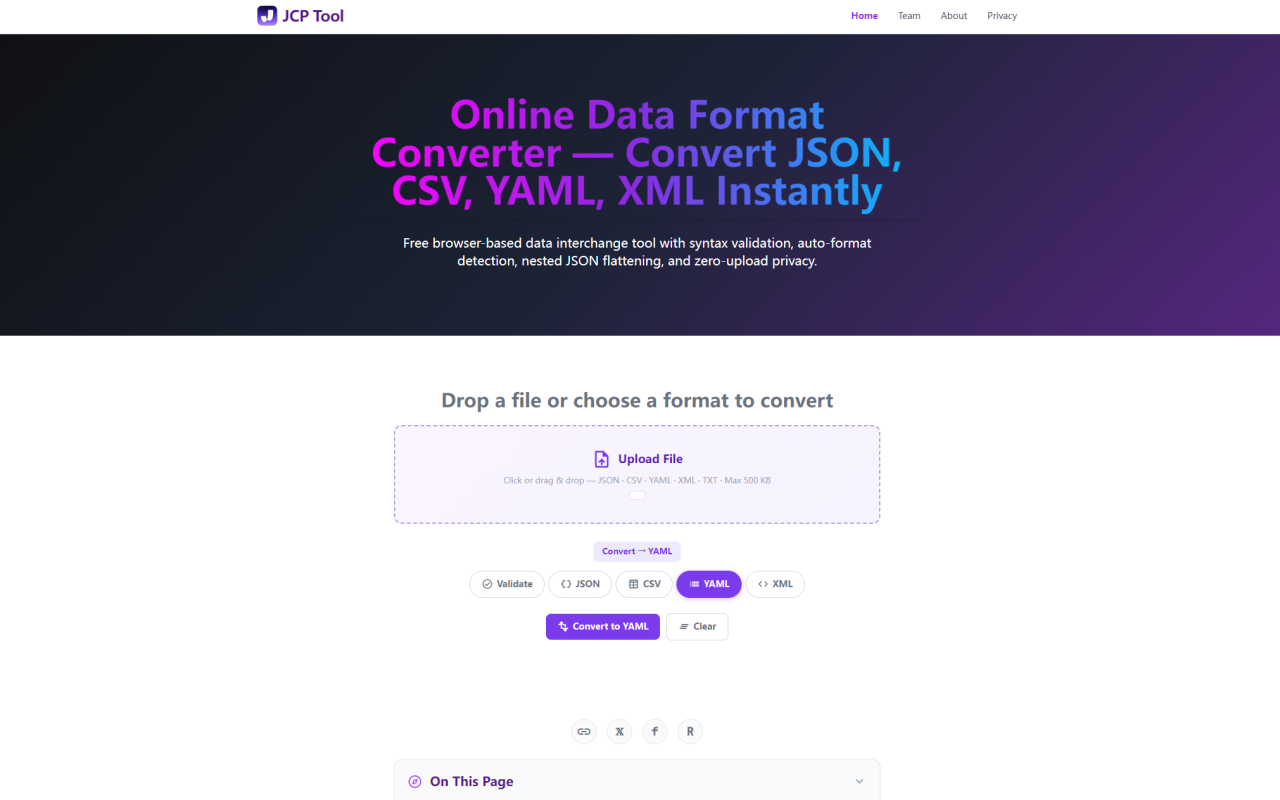
First Impressions and Interface of JCP Tool
Upon visiting the website at jcptool.com, I was greeted with a clean, single-page interface centered around a large drop zone labeled “Drop a file or choose a format to convert.” JCP Tool immediately positions itself as a no-fuss utility: no sign-up, no navigation clutter, just a row of format pills for JSON, CSV, YAML, XML, plus a Validate mode by default. A file-size limit of 500 KB is clearly stated, and the option to flatten nested JSON appears contextually when converting from JSON to CSV. The whole experience feels lightweight and fast. I pasted a sample JSON object directly into the editor and clicked the CSV pill — within a second, the preview canvas showed a beautifully formatted table with syntax coloring. The download button immediately offered a .csv file with the correct MIME type. For a totally free tool, the polish is impressive.
Under the Hood: Auto-Detection and Conversion Matrix
JCP Tool’s engine is built entirely in client-side JavaScript. The auto-detection logic tries to parse input in a strict priority order: JSON first, then XML (if input starts with <), then YAML (via js-yaml v4.1.0), and finally CSV using a custom RFC 4180 parser. I tested this by pasting a snippet of YAML that contained colons — the tool correctly identified it as YAML without any manual toggle. The conversion matrix supports 12 paths (four source formats to three targets each, excluding self-conversion). For example, when I converted a CSV with mixed headers to XML, the tool wrapped each row in <row> elements and used the first row as column names inside child elements. The output was indented with 2 spaces, and special characters were properly escaped. This level of structural intelligence is rare in free online converters; most simply treat everything as text.
Practical Testing: JSON to CSV with Flattening
One standout feature is the Flatten nested JSON checkbox. I tested it with a deeply nested object representing a user profile: { "user": { "name": "Alice", "address": { "city": "NYC", "zip": "10001" }, "tags": ["dev", "ops"] } }. With flatten enabled, the CSV output produced columns like user.name, user.address.city, user.address.zip, and user.tags[0]. Unchecking it produced a different structural representation that tried to preserve the nesting — not ideal for spreadsheet import. This is exactly the behavior data analysts need when exporting API responses to Excel. The conversion completes in milliseconds, and the preview highlights the syntax. I also tried the inverse: CSV to JSON, where the first row becomes field names. The tool handled a CSV with quoted fields containing commas and embedded newlines correctly — a clear sign of RFC 4180 compliance.
Privacy-First Architecture: Zero-Upload Processing
JCP Tool processes all data locally in your browser. I verified this by opening the Developer Tools Network panel (F12) and clicking Convert while monitoring requests. There were zero outbound calls — no data ever leaves your machine. The only external resources are Google Fonts, Material Symbols, and js-yaml from a CDN. The GA4 analytics tag collects standard page-view metrics but cannot access your input. I even tested by disconnecting Wi-Fi after the page loaded; the converter continued working offline. This is a major trust differentiator compared to tools that upload files to their servers. JCP Tool claims its source code is inspectable at /js/converter.js (MIT-style license), which adds transparency. For anyone handling sensitive configuration files or proprietary data, this zero-upload guarantee is invaluable.
Who Should Use JCP Tool and Limitations
JCP Tool is best suited for developers, data analysts, and IT professionals who need quick, one-off conversions of small data sets (under 500 KB) without sacrificing privacy. It excels at converting between JSON, CSV, YAML, and XML, and its automatic format detection saves time. However, there are limitations: the file size cap of 500 KB is restrictive for large datasets; a competitor like ConvertCSV.com handles much larger files but requires server uploads. Additionally, JCP Tool lacks advanced features like batch processing, custom delimiters for CSV, or XML schema validation. The YAML parsing depends on a CDN-loaded library; if the CDN fails, you get a clear error but the conversion cannot proceed. Also, while the interface is intuitive, there is no undo or history feature — you must manually re-enter data if you clear the field. For teams needing repetitive or high-volume transformations, a dedicated desktop tool like Papa Parse or a scriptable library may be more appropriate.
Final Recommendation
JCP Tool delivers exactly what it promises: a fast, private, and accurate data format converter for the four most common interchange formats. Its zero-upload architecture and intelligent auto-detection set it apart from many online competitors. While the 500 KB limit and lack of advanced options may frustrate power users, the tool is perfect for quick ad-hoc tasks, debugging API responses, or converting configuration files without worrying about data leakage. I recommend it for any developer or data professional who values simplicity and privacy. Visit JCP Tool at https://jcptool.com to explore it yourself.













Comments