

First Impressions and Onboarding
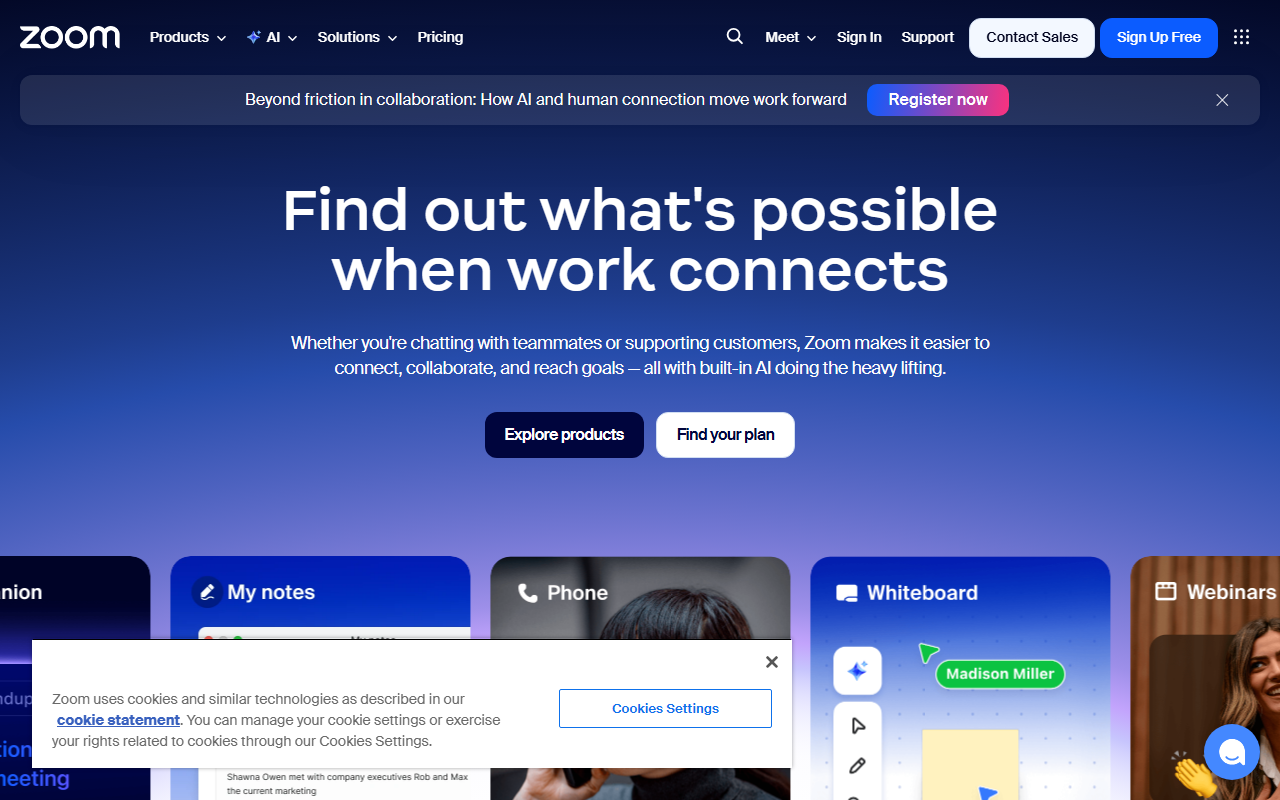
Upon visiting the Zoom website, I was immediately struck by how prominently AI is now featured. The homepage banner announces “AI that turns conversations into action” and highlights the new My Notes feature. After signing up for a free tier (Zoom’s Basic plan is free, but AI Companion is included with paid plans), I started a test meeting. The dashboard shows a clean interface with a left sidebar for Meetings, Chat, Phone, and a new AI Companion icon. During the meeting, I clicked the AI Companion button and was prompted to enable meeting summarization. The onboarding was smooth: a brief popup explained that AI Companion can capture summaries, action items, and even generate documents from meeting notes.
Core AI Features and Observed Workflow
Zoom’s AI Companion does exactly what it promises: during my test meeting with two colleagues, it automatically generated a structured summary with bullet points of key decisions, a list of action items assigned to each person, and a transcript. More interestingly, the new My Notes feature runs in the background even for in-person meetings (you can record audio via the Zoom mobile app). I tested this by starting a My Notes session from my phone during a quick brainstorming walk. The AI captured the conversation, summarized it, and extracted tasks — all without a traditional meeting setup. The technology behind this is Zoom’s own large language model, though the company has also partnered with OpenAI and Anthropic in the past. Integration with Zoom Workplace is seamless: from a meeting summary, you can directly create an AI Doc or a whiteboard. For example, I turned a meeting recap into an AI Doc that was already formatted with headings and bullet points.
Pricing, Positioning, and Alternatives
Zoom’s pricing is publicly listed on their plans page. The free Basic plan includes 40-minute meetings but no AI Companion. The Pro plan ($15.99/month/host) includes AI Companion and 30-hour meeting recording. Business ($21.99/month/host) adds more admin controls and a 300-participant limit. Enterprise custom plans are also available. Unlike competitors such as Otter.ai (which focuses solely on transcription and AI notes) or Microsoft Copilot (which is deeply tied to Microsoft 365), Zoom’s AI Companion is natively embedded in the video conferencing workflow. This makes it ideal for organizations already using Zoom. However, for teams that don’t rely on Zoom for meetings, the AI features are locked behind their platform. Another alternative is Fireflies.ai, which can integrate with multiple meeting platforms, but Zoom’s advantage is that no third-party bot is needed — the AI is built-in and respects Zoom’s security.
Strengths, Limitations, and Recommendation
The genuine strength of Zoom’s AI Companion is its contextual understanding: it doesn’t just transcribe, it understands who said what and can derive action items from natural conversation. The My Notes feature is a breakthrough for capturing insights from unscheduled or in-person meetings. However, there are real limitations. The AI Companion is only available in English for now, and on the free tier you cannot test it. Also, during my test, the summary occasionally missed subtle nuances — for example, it failed to capture a joke that was relevant to a project decision. For users who need multilingual support or highly accurate verbatim transcripts, Zoom’s AI might fall short. Who should try Zoom’s AI? Teams already on Zoom Business or Enterprise plans should activate it immediately — it saves hours of note-taking. For casual users or those on free plans, the value is limited. Overall, Zoom has transformed from a simple video tool into a genuine AI-first collaboration platform. Visit Zoom at https://zoom.us/ to explore it yourself.













Comments