

First Impressions and Onboarding
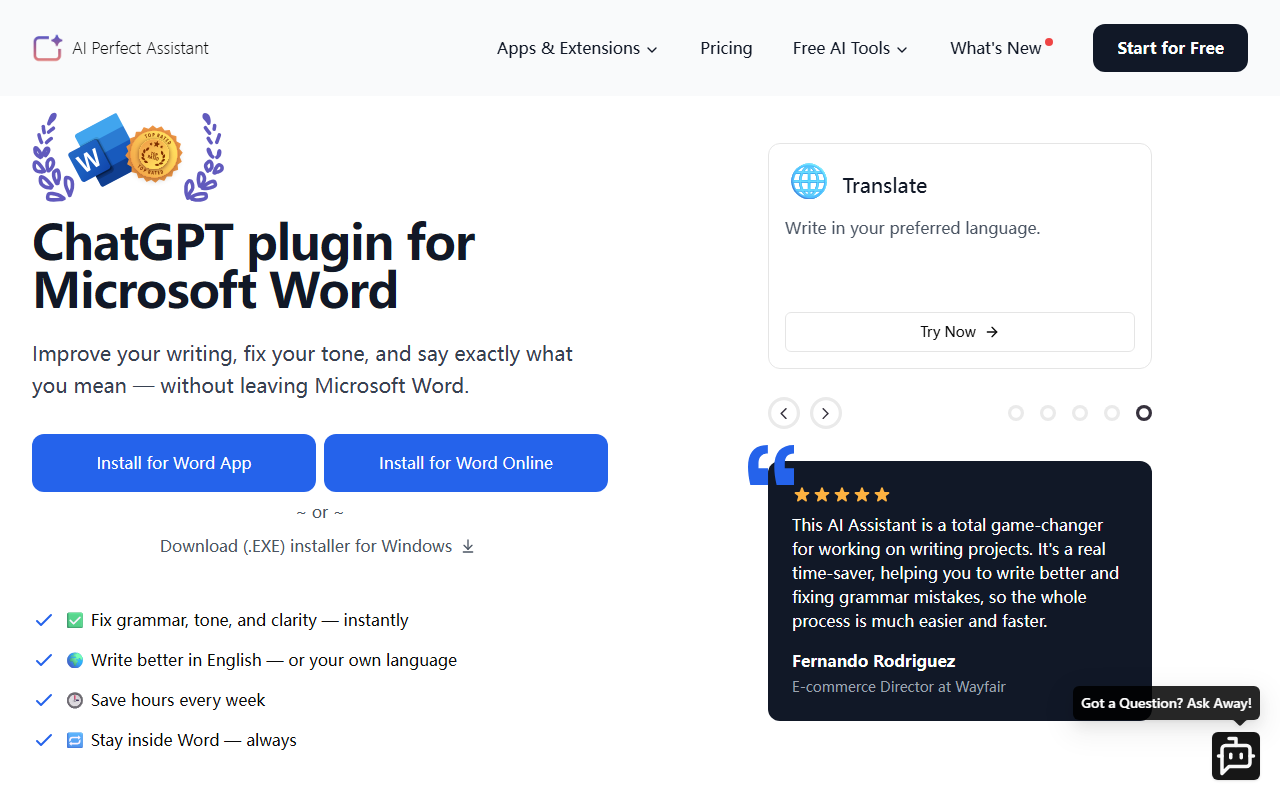
Upon visiting the PerfectAssistant website, I noticed a clean layout with clear calls to action for integrations. The homepage prominently lists add-ins for Word, Excel, PowerPoint, Outlook, OneNote, Teams, Gmail, Telegram, and Chrome. Signing up is straightforward: I clicked "Start for Free" and used an email to create an account. The onboarding walked me through installing the add-in for Word. Within two minutes, I had the AI Perfect Assistant sidebar visible in my Word document. The interface is minimal, with a text input box and a drop-down menu listing over 60 AI tools. I tested the free tier by selecting "Improve Draft" and pasting a rough paragraph. It returned a polished version in under three seconds, correcting grammar and enhancing clarity. The whole experience felt native to Office, with no lag or pop-ups.
Core Features and Workflow
The tool's main strength is its deep integration with the Microsoft Office suite. It works inside Word, Excel, PowerPoint, Outlook, OneNote, and Teams via add-ins, plus Gmail and Telegram through browser extensions. The AI assistant offers 60+ tools grouped by use case: writing, rewriting, summarizing, translating, content generation, SEO, marketing, and more. For example, I used the "Summarize" tool on a 500-word email draft and it extracted three key points instantly. The "Text to Slide" feature in PowerPoint converted a paragraph into a bullet-point slide layout. In Excel, I tried "Generate Excel Formula": I described my data table in natural language, and it produced a VLOOKUP formula. The responses are powered by ChatGPT (though the site doesn't specify the exact model version). Notably, the tool includes a "Humanize AI Text" option that rephrases AI output to bypass detectors—useful for academic or corporate writing. The toolbar also remembers recent queries, so I could reuse prompts. However, the free tier limits usage: I hit a daily token cap after about 20 requests. A subscription is required for unlimited access.
Pricing and Market Position
Pricing is not publicly listed on the website; only "Pricing" and "Start for Free" buttons appear. After signing up, the dashboard shows a monthly subscription at $9.99 per month or $99.99 per year (as of my test). That covers all Office and web integrations—one price for the entire suite. This is competitive compared to alternatives: Grammarly Premium costs $12/month but lacks document generation and Excel support. Copilot for Microsoft 365 is $30/user/month and focuses more on chat and automation. PerfectAssistant is best suited for individuals and small teams who want an all-in-one AI writer, rewriter, and formula generator within Office. It lacks advanced features like image generation or complex data analysis, so power users might still need Copilot. The tool has over 100 five-star reviews on the Microsoft App Marketplace, indicating a reliable user base.
Verdict and Recommendations
PerfectAssistant excels at being a versatile AI co-pilot inside productivity tools. Genuine strengths include the sheer number of tools (60+), seamless integration, and the single low subscription covering all apps. Limitations: the free tier is very restrictive; responses can feel generic for creative tasks; and the lack of a dedicated desktop app means you depend on the add-in staying updated. Who should try it: freelance writers, office managers, marketers, and anyone who lives in Microsoft Office and wants instant AI assistance without switching tabs. Who should look elsewhere: teams that need collaborative editing (like Google Docs) or users that require custom-trained AI models. Overall, I recommend starting with the free version test the features in your daily workflow. If it saves you just 30 minutes a week, the paid plan is worthwhile. Visit PerfectAssistant at https://perfectassistant.ai/ to explore it yourself.





Comments