
First Impressions and Onboarding
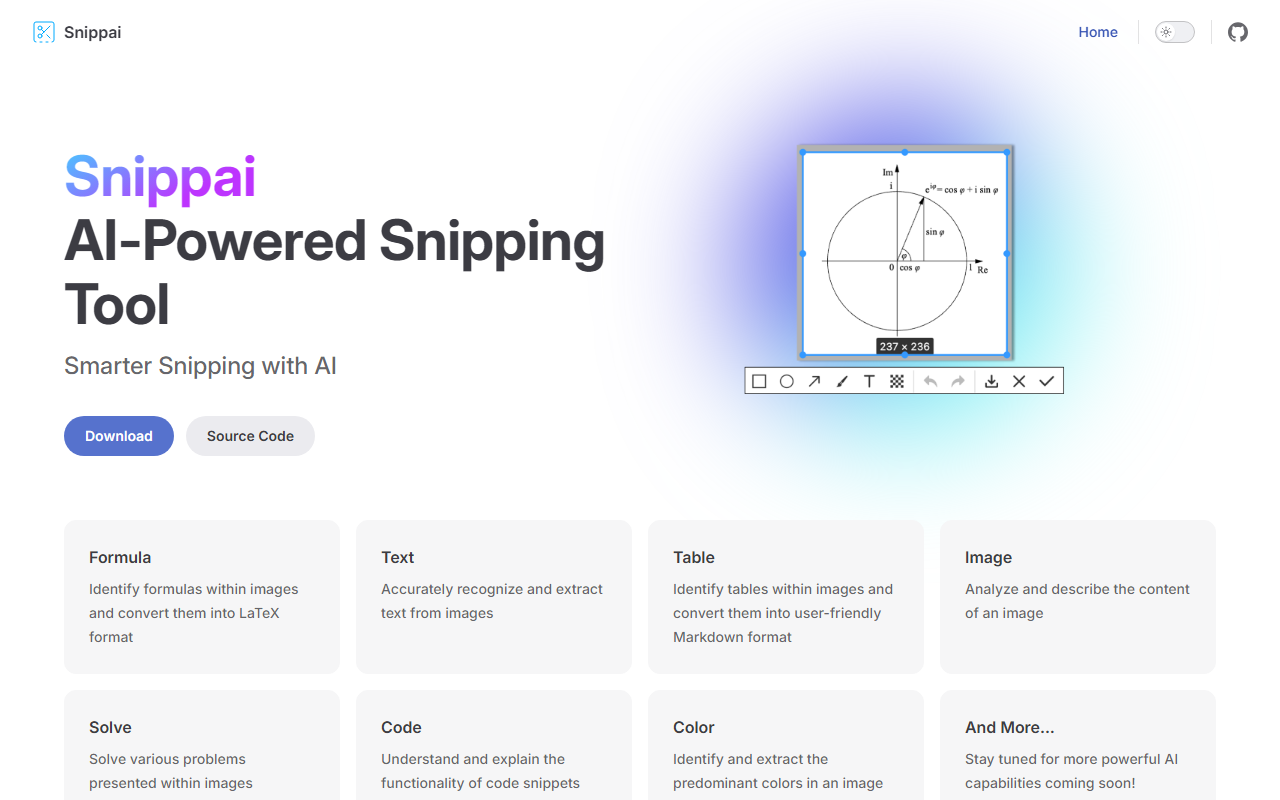
Upon visiting the Snippai website at snip.js.org, I was greeted by a minimalistic, single-page layout that immediately communicated the tool's purpose: transforming your screenshots into structured data using AI. The page is clean, with no clutter, and prominently features a download link alongside a link to the source code on a JS.org subdomain. Downloading and installing Snippai (available for Windows and macOS) was straightforward — the installer launched without any sign-up or registration requirements, which is refreshing. The onboarding experience is equally frictionless: once launched, the app lives in the system tray and activates with a global hotkey (similar to classic snipping tools like Snagit). The interface consists of a crosshair selector and a floating toolbar that appears after you capture a region. The toolbar offers nine options (Formula, Text, Table, Image, Solve, Code, Color, and a placeholder for more). This immediate, no-account-needed approach lowers the barrier to entry, though it also means there is no cloud sync or user profiles.
Key Features and Performance
I tested Snippai across several of its core features. The Text recognition performed admirably on a clear screenshot of a printed document — it accurately extracted the text, including punctuation and line breaks. The Table feature was particularly impressive: when I captured a simple data table from a PDF, the tool returned a Markdown table that I could directly paste into a note-taking app or a markdown file. The Formula extraction (LaTeX) worked well on a screenshot of a mathematical equation, correctly converting it into LaTeX syntax. For Code detection, Snippai not only extracted the snippet but also attempted to identify the programming language and explain the code’s purpose in a short paragraph — a bonus for developers reviewing legacy code screenshots. The Solve function, when given a basic arithmetic problem embedded in an image, produced the correct answer. However, the Image description feature was basic, generating only a one-sentence summary (e.g., “A screenshot of a webpage showing a search bar”). This is fine for context but lacks the depth of dedicated image description tools. Overall, the response time was fast, usually under two seconds per action, though I noticed the text extraction model occasionally stumbled on handwritten text. The app does not display which underlying AI model it uses, but given its open-source nature, one could inspect the repository to see if it leverages Tesseract for OCR or a custom trained model. The tool is entirely offline, which is a privacy plus — no data is sent to a remote server.
Pricing and Market Position
Snippai is completely free and open-source. There are no hidden tiers or premium plans, making it a cost-effective alternative to commercial tools like Mathpix (which charges for high-volume OCR usage) or Snagit (which is paid and has limited AI features). Its biggest competitor in the open-source space is probably ShareX, but ShareX lacks the dedicated AI extraction modules that Snippai offers. The tool’s focus on converting visual data into machine-readable formats (LaTeX, Markdown, plain text) makes it ideal for researchers, students, and developers who frequently need to digitize information from screenshots. That said, it is not a full-fledged screen recorder or annotation tool — it is narrowly scoped for extraction. The lack of cloud integration and multi-platform support (no Linux version listed) may limit its appeal for some users. The code repository is hosted on JS.org, but I did not see any explicit information about funding or user base size, though the GitHub stars appear modest.
Final Verdict and Recommendations
Snippai excels in what it sets out to do: providing a simple, AI-powered way to extract structured data from images without a subscription or internet connection. Its strengths include fast performance, an intuitive interface, and a generous set of extraction modes — especially the table-to-Markdown and code explanation features. The main limitations are the sparse image description quality, the lack of Linux support, and the absence of any cloud or batch processing capabilities. For anyone who regularly works with screenshots of documents, equations, or code, Snippai is a worthy addition to your toolkit. I would especially recommend it to students who need to digitize formulas and tables, and to developers who want to quickly understand code from screenshots. If you need audio annotations or video recording, look elsewhere; but for pure image-to-data conversion, Snippai delivers. Visit Snippai at https://snip.js.org/ to explore it yourself.


Comments