

First Impressions and Onboarding
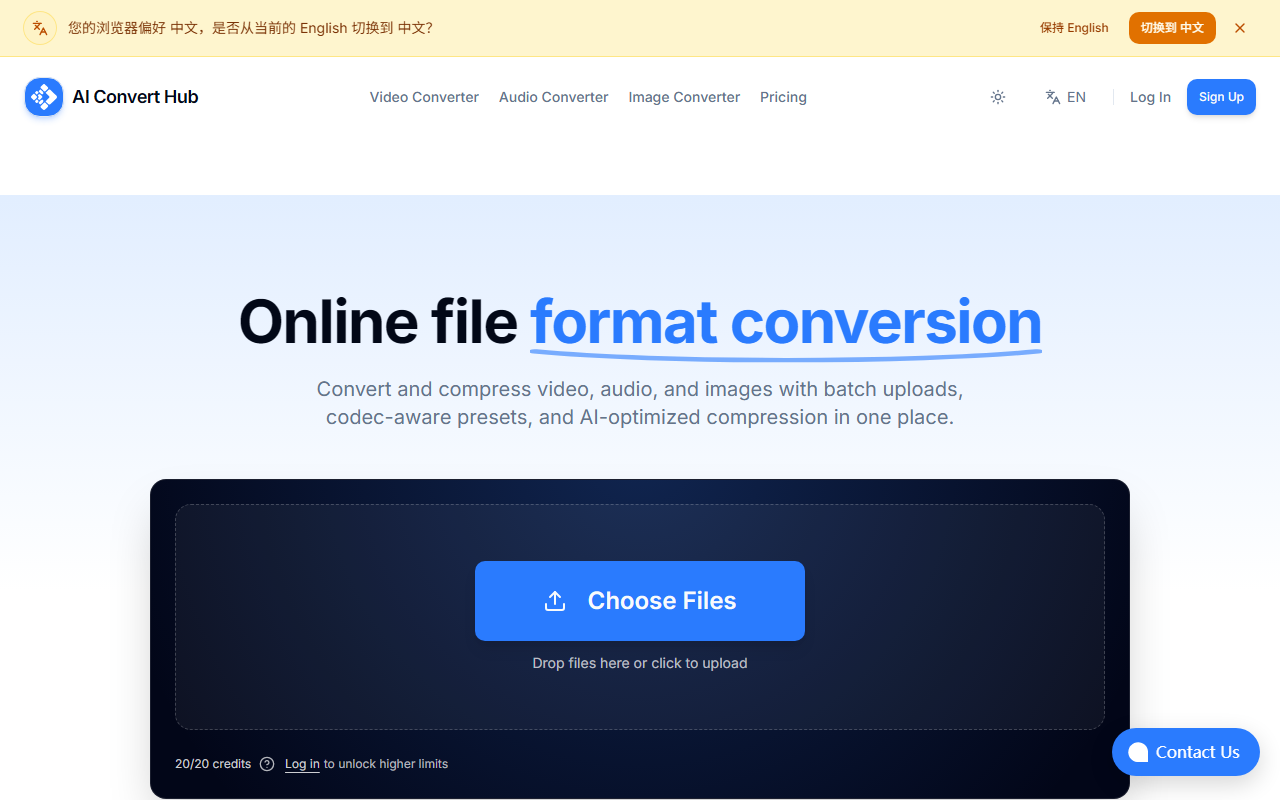
Upon visiting AI Convert Hub, the landing page presents a clean, modern interface with a prominent “Choose Files” button and a drag-and-drop zone. The toggle for language and login/sign-up options are tucked away, keeping the primary action front and center. I tested the free tier immediately without registration—just dropped a few video files into the upload area. The conversion pipeline kicked off swiftly; a progress bar showed each file’s status. The site is ad-free and clutter-free, which already sets it apart from many online converters that bombard you with pop-ups. A “Settings” icon appears for each file, allowing adjustments to CRF, bitrate, frame rate, resolution, and audio channels. This level of control is rare for browser-based tools and immediately signals that AI Convert Hub targets serious creators, not casual users.
Performance, Technology, and Feature Breakdown
AI Convert Hub is built on an FFmpeg-based pipeline with what the site calls “AI tuning” to optimize compression while preserving quality. In my test using a 30-second 4K video (H.264), the tool compressed it to roughly 60% of the original size with no noticeable quality loss. The batch processing feature worked seamlessly: I uploaded ten images (JPEG and WebP) and a few audio files, and the tool processed them all in parallel. The distributed conversion pipeline lives up to its “Lightning Fast” claim; results returned within seconds for typical files. The tool supports over 200 formats, including HEIC, RAW, and WebP, which is particularly useful for web developers. The sticky CTA (Call To Action) remains visible as you scroll, making it easy to add more files or adjust settings mid-session. Security is handled with 256-bit SSL encryption, and the site explicitly states that files are purged after processing—no storage or snooping.
From a technical standpoint, codec-aware presets are a highlight. For video, you can switch between H.264, H.265, VP9, and AV1, each with fine-grained parameters. This is a significant advantage over competitors like CloudConvert or Online-Convert, which often limit free tiers to basic presets. However, the “AI” element is vague—nowhere does the site detail what AI model or algorithm drives the compression optimization. It might simply refer to smart bitrate selection, but without transparency, the AI tag feels like marketing fluff. Still, the core functionality is robust and well-executed.
Pricing and Value Proposition
Pricing is not publicly listed on the website, but the FAQ mentions a “generous free tier” and a “Pro” plan for heavy batch jobs. The free daily credits appear sufficient for moderate use: I converted around 20 files (videos and images) before hitting a “credits exhausted” message, which reset the next day. For occasional conversions, the free tier is excellent. Power users needing high-volume or continuous batch processing will likely need Pro, but the lack of transparent pricing is a drawback. I recommend checking the site for any future pricing page or contacting support. Compared to alternatives like Zamzar (paid tiers) or HandBrake (desktop-only), AI Convert Hub offers a compelling middle ground: no installation, no ads, and advanced controls for free up to a generous limit.
Who Should Use AI Convert Hub?
This tool is best suited for content creators, web developers, and small teams who need batch conversions with precise codec control without installing software. It’s especially strong for preparing assets for web (WebP, AVIF) and archiving in high quality. The lack of an API (not mentioned) and uncertain AI specifics limit its appeal for enterprise workflows. Non-technical users may find the parameter sliders intimidating, but the defaults work well. Overall, AI Convert Hub is a polished, fast, and secure online converter that delivers on its promises. I recommend it for anyone who values control over compression and needs a browser-based solution. Visit AI Convert Hub at https://aiconverthub.com/ to explore it yourself.













Comments