
Exploring the Interface and Core Workflow
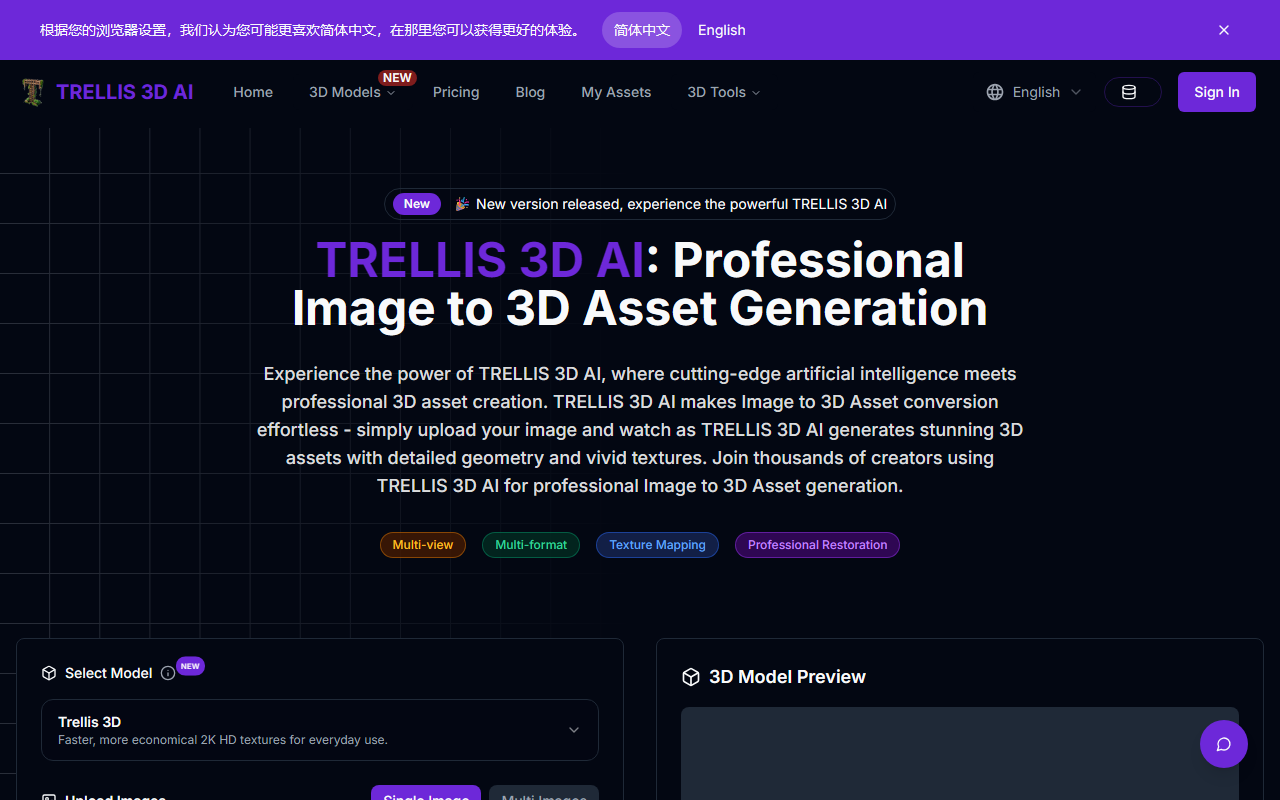
Upon visiting the Trellis 3D AI website, the first thing I noticed was a clean, modern dashboard centered around a single upload area. The onboarding is straightforward: you upload an image (JPG, JPEG, PNG, or WebP, max 20 MB), select a model variant, adjust mesh density and texture size, and click a button to generate. I chose a sample image of a teapot from the gallery to test the free tier. After clicking Generate 3D Model (3 Credits), the tool processed the image in about 15 seconds and displayed a preview in the browser. You can rotate, zoom, and pan the model before downloading. The interface also lets you choose between two models: the default Trellis 3D (faster, 2K HD textures) and a newer variant labeled New Trellis 3D, which likely uses an updated architecture. I appreciated that you can preview the result directly without any software installation—a major convenience for quick prototyping.
Under the Hood: Technology and Output Quality
Trellis 3D AI uses what the site calls Structured LATents (SLAT), combining pretrained vision encoders with rectified flow transformers. This approach aims to preserve both geometric structure and visual details. When I tested the teapot image, the output model captured the overall shape accurately and maintained the glossy highlight on the ceramic surface. The texture resolution options—Fast, Standard, and HD—let you balance speed and quality; I used Standard and the result was clean enough for a game asset mockup. The tool outputs in six formats: GLB, OBJ, STL, GLTF, USDZ, and PLY. That range covers most workflows, from game engines (Unity, Unreal) to 3D printing and AR. The mesh density slider (Low, Medium, High) gives some control over polygon count, though I found Medium a good default. One limitation: the tool requires 3 credits per generation, and the free allocation appears limited—after two generations, the count didn't reset instantly. There’s no clear pricing page, but the FAQ confirms a free online version exists, with additional capabilities for paying users.
Pricing, Limitations, and Market Positioning
Pricing is not publicly listed on the website beyond the credit system. The free tier gives you a small number of credits (likely 9 or 15 based on typical free trials), after which you need to purchase more or subscribe. This is common among similar tools like Meshy (which offers a free tier with watermarks) and Luma AI’s Genie (paid subscriptions). Trellis 3D AI’s strength lies in its multi-format export and browser-based workflow, which is ideal for designers who need quick turnarounds without installing complex software. However, the tool currently lacks an API, which limits integration into automated pipelines. The image size cap of 20 MB is also restrictive for high-resolution source material. On the plus side, the FAQ states that generated assets can be used commercially, subject to the terms of service—a crucial point for freelancers and small studios.
Who Should Use Trellis 3D AI?
This tool is best suited for indie game developers, 3D printing enthusiasts, and content creators who need fast, decent-quality 3D models from single images. If you’re prototyping props, characters, or environmental assets, Trellis 3D AI will save you hours of manual modeling. The free tier is generous enough to evaluate the quality before committing to a paid plan. That said, professionals requiring ultra-high polygon counts or intricate PBR textures should look elsewhere—Meshy offers more control over UV maps and Luma AI provides better volumetric capture for complex objects. Overall, Trellis 3D AI is a solid entry in the image-to-3D space, especially for its ease of use and export flexibility. Visit Trellis 3D AI at https://trellis3d.co/ to explore it yourself.













Comments