

First Impressions and Interface
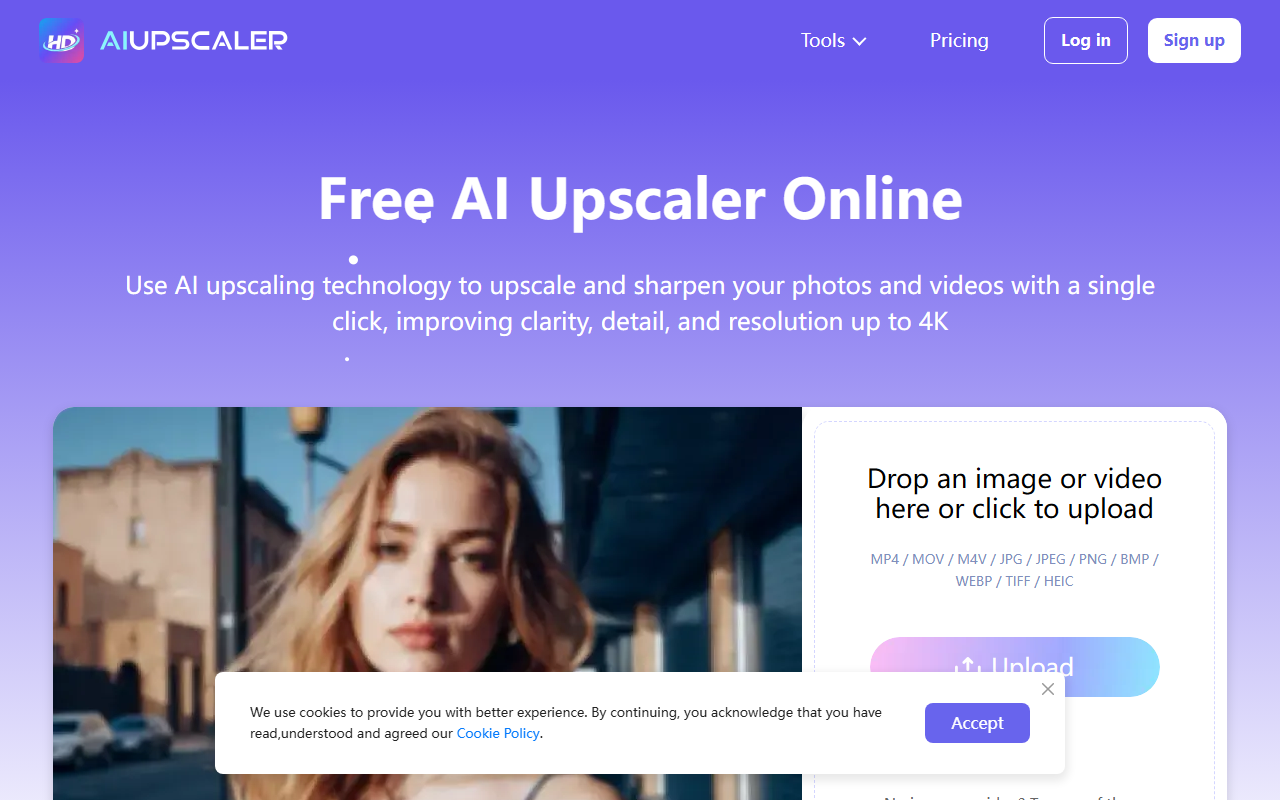
Upon visiting AI Upscaler at aiupscaler.ai, I was greeted by a clean, modern landing page with a prominent hero section promising "Smarter AI 4K Upscaler for Images & Videos." The navigation bar offers quick access to separate tools for image upscaling, video upscaling, unblurring, old photo restoration, and image sharpening. I appreciated the straightforward layout: no clutter, no popups asking for my email immediately. The onboarding flow is simple—click "Try Image Upscaler" or "Try Video Enhancer," and you’re taken to a dedicated upload page. There’s a clear before/after slider on the homepage showcasing the tool’s capabilities, using an example of a low-res image transformed into a sharper version. This visual proof of concept builds immediate trust.
Core Features: Image and Video Upscaling
The tool employs advanced AI upscaling technology to enhance resolution without introducing blur or noise. I tested the free image upscaler with a 720x480 JPEG photo. Upload took only a few seconds, and within about 10 seconds the AI returned a 4K version. The details were noticeably sharper while the original colors remained intact. The tool also supports fixing blurry pictures and restoring texture, which worked well on an old scanned photo I tried. For video, AI Upscaler promises frame-by-frame upscaling to HD or 4K, though the free tier limits file sizes to 20MB for images and 300MB for videos (max 10 minutes). The entire process runs in your browser—no software installation needed. The website states that all uploads are processed securely and privately, which is a plus for users concerned about data leakage. Supported formats include JPG, PNG, WebP, TIFF, MP4, MOV, and M4V, covering most common media types.
Pricing and Limitations
Pricing is not publicly listed on the website beyond a mention of a limited number of free uses each day. The FAQ notes you can "upgrade to PRO or purchase additional credits" when the free quota is exhausted, but no tier amounts or prices are shown. This lack of transparency is a limitation for users who want to evaluate long-term costs upfront. During testing, I only had access to the free tier, so I cannot verify the speed or quality of the PRO version. Another limitation is the file size cap—300MB for videos may be restrictive for longer clips, and while the free daily uses are convenient, heavy users will quickly hit the cap. Additionally, the tool doesn’t offer batch processing or an API, so it’s best suited for occasional, single-file enhancements rather than high-volume workflows.
Verdict: Who Should Use AI Upscaler?
Compared to competitors like Let’s Enhance or Clipdrop Image Upscaler, AI Upscaler focuses on simplicity and a free tier that actually works without requiring a credit card upfront. It excels for social media creators, small business owners, and casual photographers who need to quickly polish images or short videos for online use. The one-click workflow and browser-based operation make it highly accessible. However, professionals who need batch processing, raw editing, or transparent pricing may want to look elsewhere. The tool’s strengths are its ease of use, decent output quality, and privacy promise. The main drawbacks are the opaque pricing model and the file size limits on the free plan. Overall, if you need a free, no-fuss AI upscaler for occasional enhancement, AI Upscaler is a solid choice. Visit AI Upscaler at https://aiupscaler.ai/ to explore it yourself.


Comments