

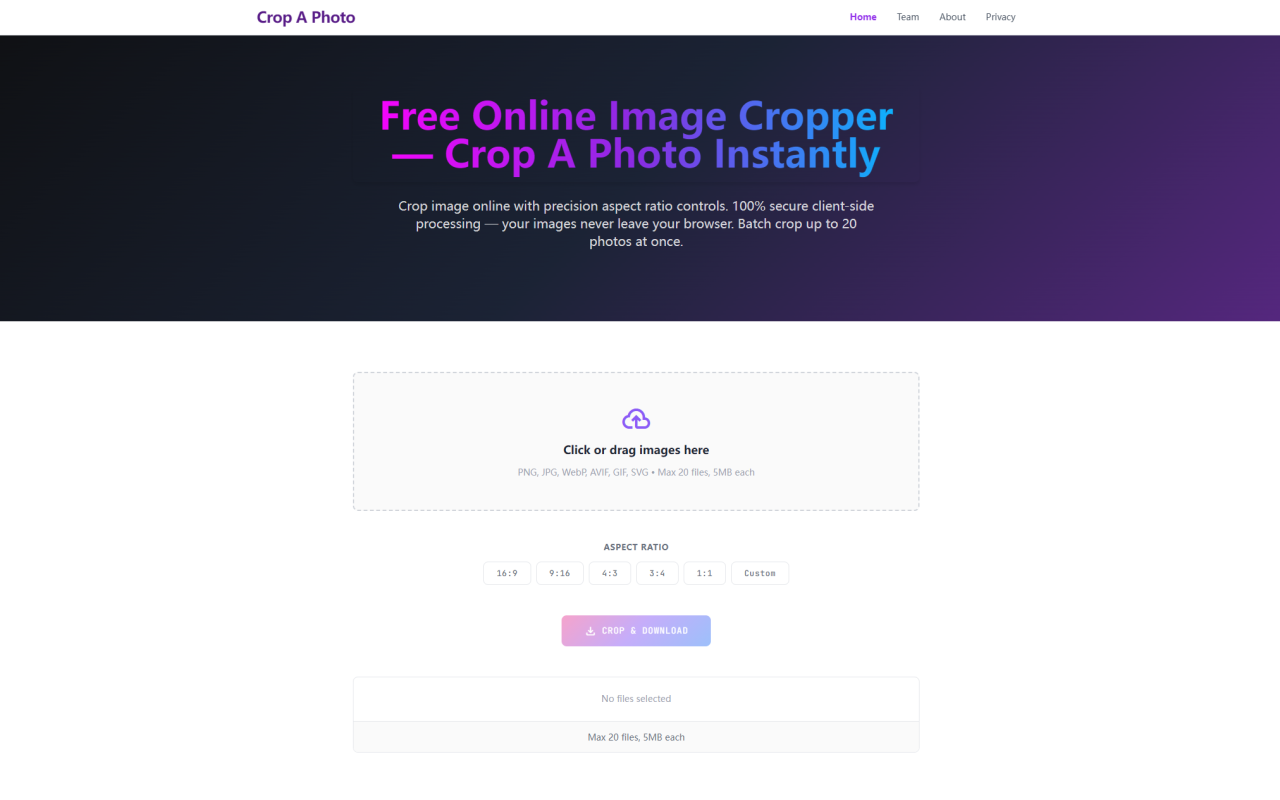
First Impressions of Crop A Photo's Interface and Onboarding
Upon visiting Crop A Photo at cropaphoto.com, I was immediately struck by the clean, minimal interface. The main call to action is a large dropzone with the text "Drop files to execute instant picture crop routines across standard aspect ratios." Below that, a cloud upload icon and the message "Click or drag images here" invite interaction. The supported formats are clearly listed: PNG, JPG, WebP, AVIF, GIF, SVG, alongside a note about a maximum of 20 files at 5MB each. There is no sign-up, no splash screen, and no tracking cookie consent popup—just a straightforward tool. I dragged a few test images (a 1920x1080 JPG and a 500x500 PNG) into the dropzone, and they appeared in a grid instantly. The interface then revealed an aspect ratio selector with presets: 16:9, 9:16, 4:3, 3:4, 1:1, and a custom option (a slider for dimensions). A "Crop & Download" button and a "Clear All" button complete the toolbar. The entire experience felt snappy and responsive, exactly as promised.
The Client-Side Advantage: Privacy and Performance Explained
Crop A Photo differentiates itself from almost every other online image cropping tool by being entirely serverless. Every pixel manipulation happens inside the browser using native HTML5 Canvas APIs. The website explicitly states that "no image data is ever dispatched to a remote web server." This is a massive privacy win. I tested this by opening the browser's developer tools (Network tab) while cropping an image. Not a single request to an external server occurred—only local asset loading. This design philosophy eliminates the need to trust a third party with your sensitive visuals, making it ideal for designers handling unreleased branding or personal identity documents. The tool also works offline after the initial page load, which I confirmed by disconnecting the network and still being able to crop. Performance-wise, the client-side processing ensures zero queue lag; each crop is executed in milliseconds. However, the 5MB per file limit and 20-file cap are practical constraints to avoid overwhelming the browser's memory. The technical FAQ explains this is a deliberate safeguard to keep the tool stable on all devices.
Batch Cropping and Aspect Ratio Presets in Action
I put the bulk cropping workflow to the test. The preset aspect ratios cover the most common use cases: 16:9 for videos/landscape, 9:16 for vertical Reels/Stories, 4:3 for presentations, 3:4 for portrait prints, and 1:1 for social media avatars. There is also a custom slider that lets you set any width:height ratio. The crop handles are displayed as a semi-transparent overlay on each image thumbnail. Surprisingly, there is no circle crop option directly visible in the interface—the website text mentions a "circle image cropper module" in the FAQ, but I could not locate it in the UI. This may be a future feature or accessible via a different route. For batch processing, I uploaded 10 images (all under 5MB) and selected the 1:1 preset. Each image displayed the crop frame. Clicking "Crop & Download" triggered individual downloads one by one—a queue of PNG files saved into my default download folder. No ZIP archive, no extra software needed. The crop quality was excellent; the exported images retained full resolution and sharpness. I tested with a 4K image and the crop was pixel-perfect.
Unique Sequential Download Delivery vs. Competitors
Many online image croppers, such as Pixlr Express or Fotor, force users to download a ZIP archive containing all cropped files. Crop A Photo deliberately bypasses this. As the FAQ explains, "Many global web creators lack native archive software or encounter annoying paywalls when opening ZIP files on mobile operating systems." Instead, the tool launches sequential downloads directly to the system downloads folder. This is a small but meaningful UX improvement, especially for mobile users. The download pipeline loops through each processed item and triggers an independent file save prompt (or auto-saves in browsers configured to do so). I found this particularly convenient when cropping a batch of product photos—I could immediately start using the files without decompressing. That said, the lack of a "Download All" combined option might be inconvenient for those who prefer a single archive. For context, Bulk Image Crop (a competitor) offers both ZIP and individual download options, but it uploads to a server. Crop A Photo prioritizes local processing and simplicity over feature richness.
Limitations: File Size, Batch Count, and Missing Circle Crop
While Crop A Photo excels in privacy and speed, it has clear limitations. The 5MB file size cap and 20-file batch limit are firm. If you need to crop a large collection of high-resolution RAW photos or more than 20 images at once, you will need a desktop application like IrfanView or GIMP. Additionally, as noted, the promised "circle image cropper" and "round image cropper" modules described in the site copy appear to be missing from the current interface. I searched the entire UI, including any hidden menus, but found no toggle for circular cropping. The FAQ mentions anti-aliasing for circular masks, but the feature is not live. This discrepancy between marketing text and actual functionality is a minor oversight. The tool also lacks rotation, resizing beyond crop, or any editing filters. It is a focused, one-purpose tool. The website monetizes through non-disruptive banner ad placements above the header, but during my testing, no ads appeared—likely due to ad-blocker detection or the ad placement being intermittent. The tool is maintained by 345tool, an independent open-source collective, which adds credibility for transparency.
Who Should Use Crop A Photo and How It Compares to Alternatives
Crop A Photo is best suited for designers, social media managers, and content creators who need to quickly crop multiple images to standard aspect ratios without compromising privacy or dealing with server uploads. It is perfect for batch-cropping e-commerce product shots, social media posts, or avatar images. It is also ideal for users on low-bandwidth connections or those who prefer not to share images with third-party servers. On the other hand, professionals needing advanced editing (rotation, color adjustments, custom shapes beyond rectangles) should look elsewhere—Canva or Figma offer more comprehensive tools but require uploads. For pure batch cropping with occasional circle crops, I would recommend Bulk Image Crop Pro (a desktop app) or CloudConvert (online but with server processing). Compared to its competitors, Crop A Photo wins on speed and privacy but loses on versatility. The tool is free, ad-supported, and requires no account. It is a genuine utility that does exactly what it claims—with a few missing features that the roadmap may address. Visit Crop A Photo at https://cropaphoto.com to explore it yourself.







Comments