

First Impressions and Onboarding
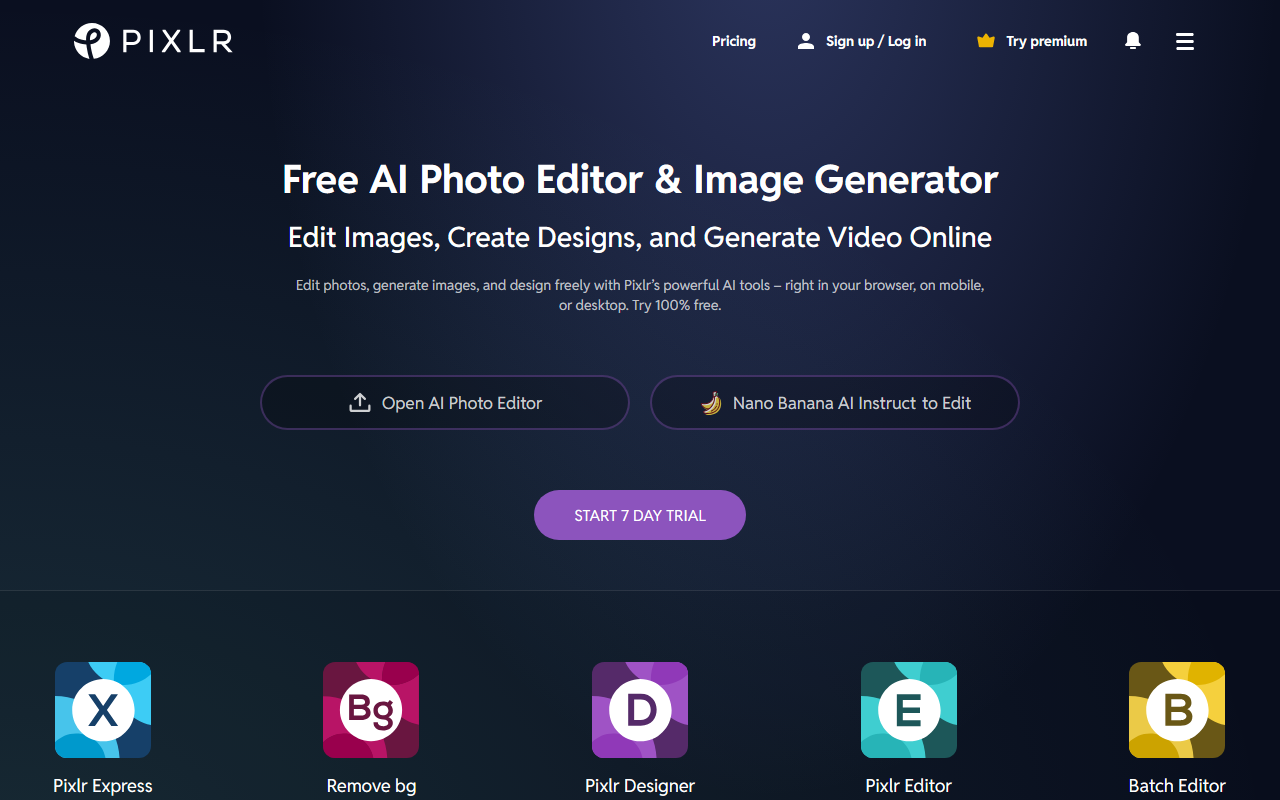
Upon visiting pixlr.com, I was greeted by a clean, modern interface that immediately presents a choice between Pixlr Editor (advanced), Pixlr Express (quick edits), and Pixlr Designer (templates). The homepage highlights five key tools: AI Image Generator, AI Generative Fill, AI Background Removal, AI Face Swap, and AI Remove Object. I signed up for the free tier in seconds—no credit card required. The onboarding flow is minimal: you click into any tool and begin editing straight away. The dashboard shows a toolbar reminiscent of desktop editors but runs entirely in the browser. I tested the AI Image Generator by entering the prompt “a cat wearing a vintage hat”. Within about five seconds, it returned four variations, each with decent composition and style. The free tier generates images at a lower resolution but still useful for quick mockups.
Core AI Tools and Performance
Pixlr’s AI suite is surprisingly deep for a free product. Beyond the text-to-image generator, it includes Generative Fill (to add or replace objects in an image) and Generative Expand (to extend the canvas). I used Generative Fill to remove a distracting sign from a photo: I selected the area with a brush, clicked “Generate,” and the tool filled the selection with context-appropriate content. The result blended well, though fine details like text required a second attempt. The AI Background Remover works in one click—I tested it on a portrait and it cleanly isolated the subject. Other tools like AI Super Scale and AI Super Sharp are notable: Super Scale upscaled a 500px image to 2000px while maintaining sharpness. The web-based performance depends on your internet speed, but Pixlr uses server-side processing, so even modest laptops can handle complex edits. For batch editing, the Batch Editor allows applying the same effect to multiple images—a time-saver for marketers.
Pricing and Value Compared to Competitors
Pixlr operates on a freemium model. The free tier provides access to basic editing, many filters, and limited AI generations (I counted roughly 10 free AI uses before a watermark appears). For unlimited access, a premium subscription is required—pricing is not publicly listed on the homepage, but a 7-day free trial is offered (currently with a 40% Back to School discount). Alternatives include Adobe Photoshop (subscription heavy, steep learning curve), Canva (more design templates, but less robust photo editing), and Fotor (similar AI features, but narrower toolset). Pixlr stands out because it combines a full-featured editor, batch processing, and generative AI in one browser-based platform. Its 15-year legacy also signals reliability—millions of users trust it. However, the free tier’s generative limits may frustrate heavy users, and some advanced filters (e.g., HDR, Glitch) are reserved for premium.
Who Should Use Pixlr
Pixlr is best suited for content creators, social media managers, and hobbyist photographers who need a free yet capable editor without installing software. It’s also excellent for educators teaching photo editing basics. Professionals who require precise layer masks or CMYK support should look elsewhere—Pixlr lacks CMYK color mode and its layer system is simpler than Photoshop’s. But for 90% of everyday tasks—background removal, resizing, simple compositions, and AI image generation—Pixlr delivers remarkably well. I recommend trying the free tier first; if you hit the AI limits, the premium trial is worth exploring. Visit Pixlr at https://pixlr.com/ to explore it yourself.













Comments