

First Impressions and Onboarding
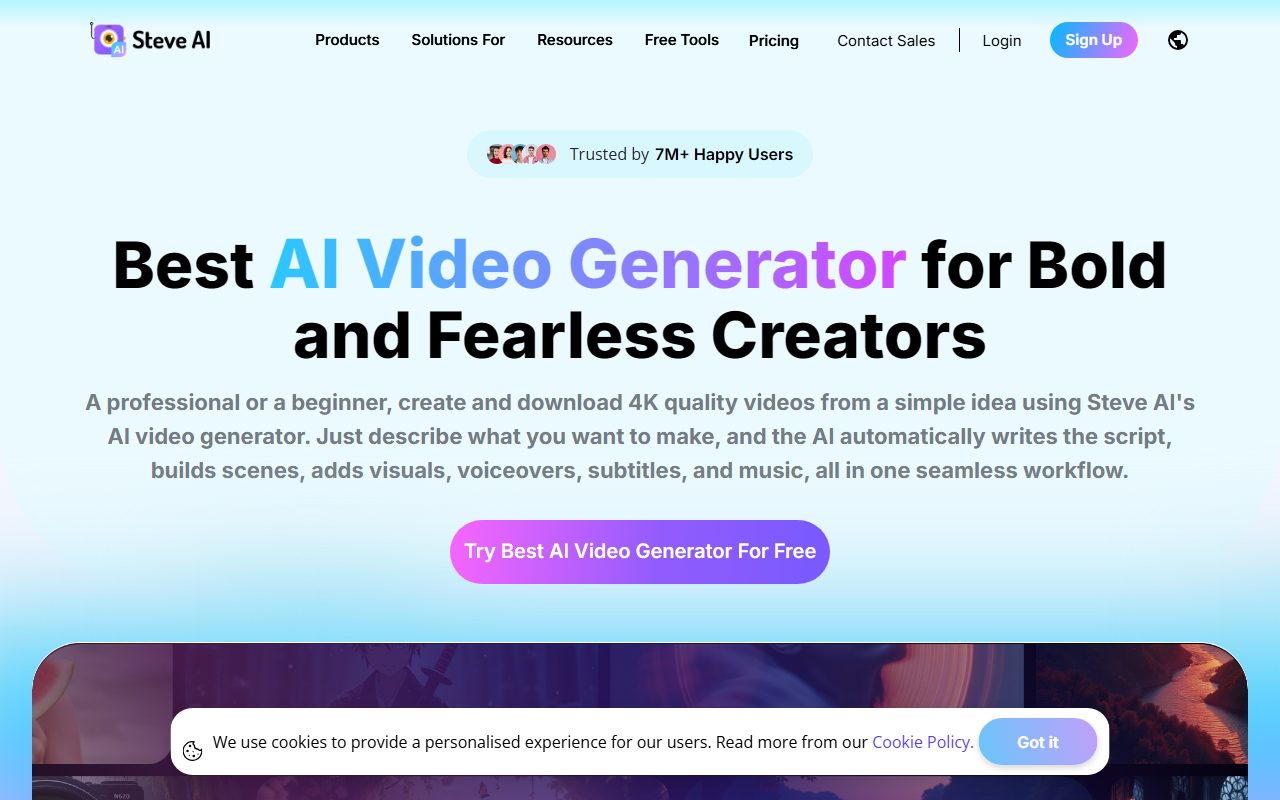
Upon visiting Steve AI’s website, the first thing that struck me was the sheer breadth of claims. “Trusted by 7M+ Happy Users” and “Best AI Video Generator for Bold and Fearless Creators” are bold statements. The homepage immediately presents multiple entry points: text-to-video, prompt-to-video, audio-to-video, and even an image-to-video option. I decided to test the free tier first. After signing up with just an email, I was dropped into a clean, minimal dashboard. The left sidebar lists all the major modes: Script to Video, Prompt to Video, ClipMaker, UGC Studio, and Motion Effects. The onboarding tooltip highlighted the “Advanced Prompter” – a feature that guides you through describing your idea if you’re unsure how to prompt. I typed a simple prompt: “a 30-second explainer about climate change for social media.” Within seconds, Steve AI generated a script, suggested scenes, and offered a selection of AI voices. The flow felt remarkably smooth, though the free tier limited me to 1,200 seconds of AI video and 200 credits for media generation. That’s generous for a free plan, but generative AI outputs (like animated scenes) eat up credits quickly.
Core Features and Workflow
Steve AI is not just a text-to-video tool; it’s a multi-modal video creation suite. The standout feature is the ability to input not only text but also audio recordings, existing images, or even blog URLs. I tested the Multi-voice Storytelling feature: you can assign different AI voices to different characters in a script, creating natural-sounding dialogues for UGC ads or training videos. The voices are impressively human-like, with up to 100% realism on higher tiers. Another highlight is the UGC Studio, which lets you create testimonial-style videos using AI avatars or digital clones without filming. I uploaded a script and selected an avatar; the lip-sync was convincing, though the avatar’s gestures felt slightly repetitive after 20 seconds. For motion enthusiasts, the AI Motion Effects tool adds zooms, kinetic text, and camera movements automatically. I applied it to a static product image, and the resulting clip had dynamic pacing that would turn heads on social media. The ClipMaker AI is perfect for repurposing tweets or blog snippets into vertical shorts. However, the sheer number of options can be overwhelming for a beginner; the interface could benefit from a simplified “Quick Create” mode. The tool also includes a built-in AI Video Editor for fine-tuning scenes, which is essential because the auto-generated output often needs manual tweaks—for instance, correcting inconsistent character designs or adjusting scene timing.
Pricing and Accessibility
Steve AI offers five pricing tiers: Free ($0), Starter, Pro, Generative AI, and Custom Enterprise. The free plan is surprisingly generous with 1,200 seconds of AI video per month and 200 media credits, but lacks generative AI credits and watermarks. The Starter plan (pricing not explicitly listed on the landing page, but inferred from the table) includes 100 minutes of AI video and 800 media images monthly, plus 120 seconds of generative credits. Pro bumps that to 300 minutes and 2K resolution. The Generative AI tier unlocks 15 minutes of generative credits per month, crucial for the animated and AI-style outputs. What I found refreshing is the “FlexiCredits” system: you can purchase additional generative credits or power-ups à la carte without committing to a higher plan. This is a smart move for occasional users. Compared to competitors like InVideo ($20/month for 10 iStock videos) or Pictory ($19/month for 30 videos), Steve AI’s free tier is far more usable, though its paid plans may cost more per minute of video if you need heavy generative features. Notably, Steve AI has a mobile app (iOS) for on-the-go editing, which is a plus for busy creators.
Who Should Use Steve AI?
Steve AI is best suited for content creators, marketers, and small business owners who need to produce a high volume of short-form videos for social media, ads, and training. Its strength lies in the variety of input methods and output styles—from live-action style to fully animated. The UGC Studio and multi-voice features are particularly valuable for product promotion without on-camera talent. However, it’s not ideal for users seeking high-end cinematic quality or fine-grained control over every frame; the AI’s creative choices can sometimes feel generic, and advanced editing requires upgrading to the editor. Also, enterprise users with strict branding guidelines might find the customization options limited compared to tools like Synthesia, which offers custom avatars and full lip-sync control. Bottom line: If you want an all-in-one AI video generator that lets you experiment with different formats and styles on a generous free tier, Steve AI is worth trying. Start with the free plan to gauge whether the output quality meets your standards before committing to a paid subscription.
}












Comments