

First Impressions and Onboarding
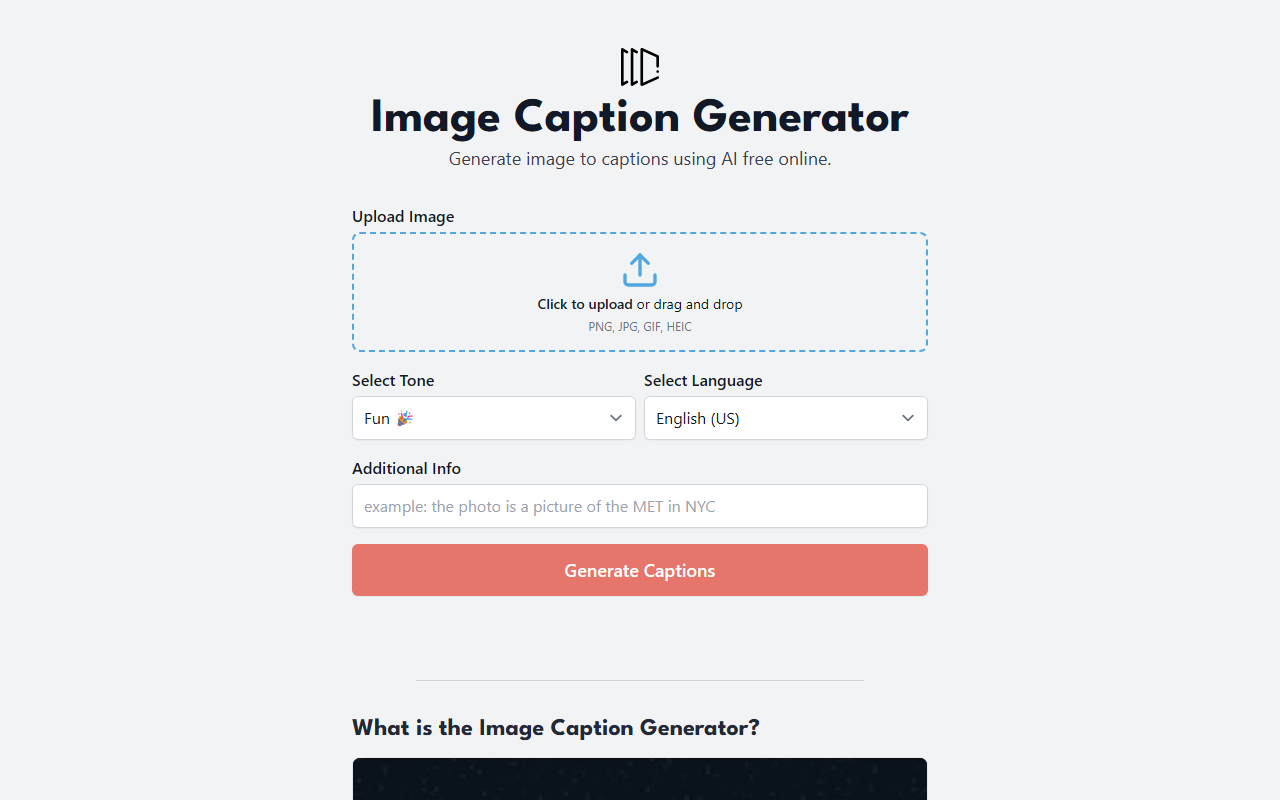
Upon visiting Image Caption Generator, the interface is immediately clear and uncluttered. The homepage centers on a single upload area with a large "Click to upload or drag and drop" callout, supporting PNG, JPG, GIF, and HEIC formats. I appreciate that there is no sign-up required—you can start generating captions instantly. The dashboard also displays an extensive list of tone options (from "Fun" and "Accurate" to "Mysterious" and "Technical") and a language dropdown covering over 30 languages, including regional variants like Spanish (Mexico) and Chinese (Traditional). The overall aesthetic is modern and friendly, with subtle branding from RightBlogger. This no-friction onboarding is a big plus for casual users and professionals alike.
How It Works and Core Features
The workflow is straightforward: upload an image, select a tone, optionally add context, pick a language, and click "Generate Captions." During my test, I uploaded a photo of a coffee cup on a wooden table. I chose the "Inspirational" tone and English (US). Within seconds, the tool returned three caption options: "Every cup of coffee is a chance to savour the moment," "Warmth in every sip, peace in every pause," and "Finding inspiration in the simple things." The captions were contextually relevant and varied in style. Notably, the tool also offers an "Alt Text" tone specifically for accessibility and SEO, as well as "Filename" mode that outputs a dash-separated string (e.g., "warm-coffee-morning.jpg"). This dual-purpose approach—serving both creative copy and technical metadata—makes it more than just a simple caption writer. The underlying technology appears to combine computer vision for image understanding with a large language model (LLM) for text generation. The site explicitly states that images are not stored, only passed to the LLM for processing, which is reassuring for privacy-conscious users.
Strengths and Limitations
A major strength is the sheer diversity of tones and languages. With over 30 tone options and 30+ languages, you can tailor captions for specific audience segments and platforms. The tool is completely free on the web version, with no hidden credits or limits—at least in my testing. Another strength is the inclusion of practical outputs like alt text and filenames, which directly support SEO efforts. However, there are notable limitations. The free version uses a basic AI model; the site itself promotes a paid upgrade via RightBlogger for "unlimited access, improved AI models, and advanced features." This suggests the free tier may have quality caps or slower processing. Moreover, the tool lacks batch processing—you must handle images one by one. There is no API for integration into workflows. Also, the captions, while impressive for a free service, can sometimes miss subtle details in complex images (e.g., a group of people with specific expressions). For professional photographers or e-commerce sites needing highly accurate descriptions, this might require manual editing.
Who Should Use It and Alternatives
The Image Caption Generator is best suited for social media managers, small business owners, bloggers, and content creators who need quick, creative captions for visual content. It is also excellent for generating alt text to improve accessibility and SEO. For heavy-duty use (e.g., bulk product images), consider dedicated tools like Pallyy (focused on social media scheduling) or RightBlogger’s own upgraded version. Unlike Ahrefs’ Instagram Caption Generator, this tool supports images directly rather than text prompts, giving it a visual edge. However, if you need integration with a CMS or API, you may find it lacking. Overall, the free version offers remarkable value for occasional use—no sign-up, no payment, just upload and go. For advanced needs, the RightBlogger upgrade is a logical next step. Visit Image Caption Generator at https://imagecaptiongenerator.com/ to explore it yourself.











Comments