

First Impressions and Core Features
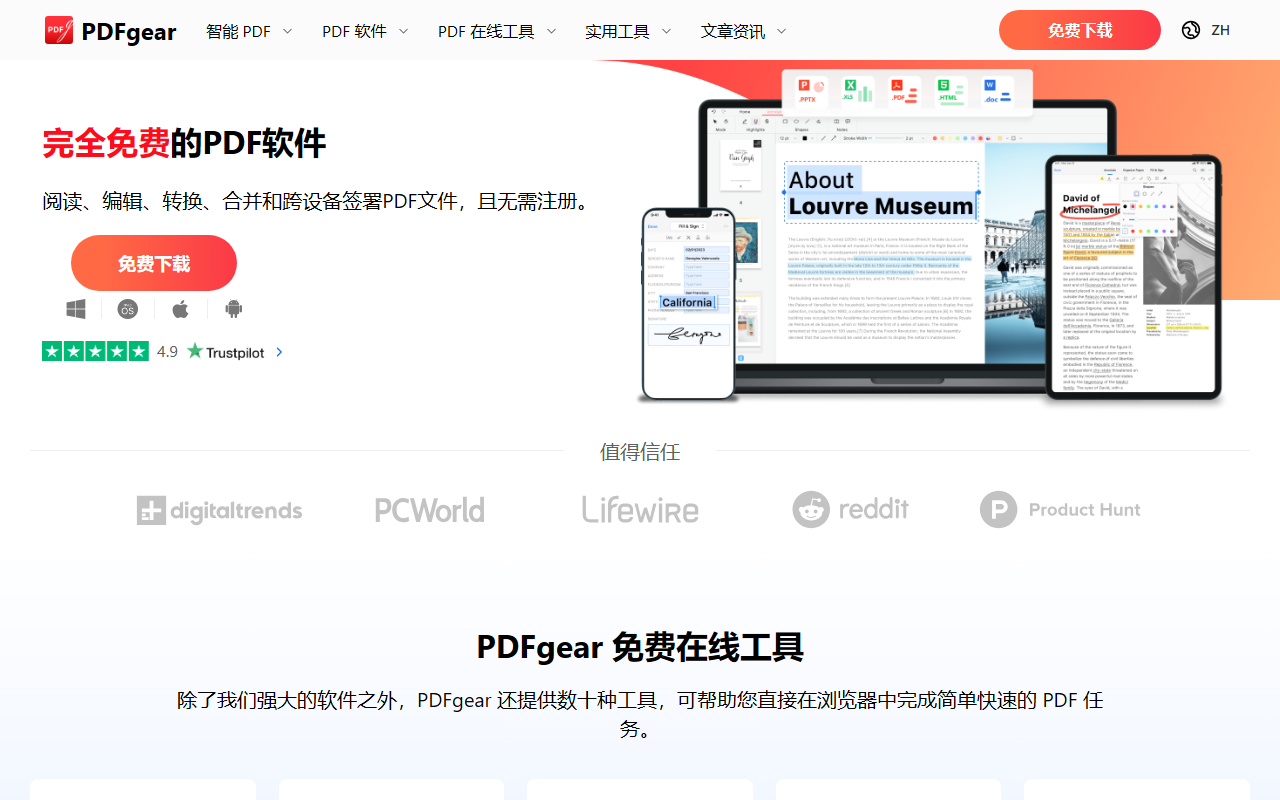
Upon visiting pdfgear.com, the first thing I noticed is a clean, no-nonsense interface that immediately positions this tool as a free alternative to heavyweight PDF editors. The hero section proudly declares "PDF Tasks Made Easy" and emphasizes that it works across devices without requiring sign-up. The dashboard clearly outlines both desktop software (Windows, Mac, iOS, Android) and a suite of online tools. During my test, I downloaded the Windows version—a lightweight installer that launched quickly. The main window offers straightforward options: edit, annotate, convert, OCR, merge, sign, and more. I was particularly impressed by the OCR feature, which supports over 30 languages and lets you convert scanned PDFs into editable Word or TXT files. The edit tool works similarly to Microsoft Word: you can click on text, images, or form fields and modify them directly. This is a major step up from many free tools that only allow basic annotations. PDFgear also includes a batch conversion mode, preserving formatting during PDF-to-Word or PDF-to-Excel conversions. The web-based tools are equally simple—upload a file, choose an action, and download the result. No account creation means zero friction for quick tasks.
The AI Integration and Real-World Testing
What truly sets PDFgear apart is its built-in AI assistant, which the website calls the "first AI-powered PDF software." I tested this by opening a 20-page research PDF and clicking the ChatGPT-like icon in the toolbar. The AI panel let me ask questions like "Summarize the key findings" and "What is the methodology?" The responses were accurate and pulled directly from the document’s content. Unlike generic chatbots, PDFgear’s AI stays within the context of the open file, so you can ask follow-up questions or request extraction of specific data points. The AI also supports highlighting relevant text and can generate a bullet-point summary of any section. For power users, there is a "Extract Text" tool that lets you draw a selection box around any part of the page and instantly copy the text—great for tables or formatted lists. I also tried the "Chat with PDF" feature: you can type a natural language query like "Find all dates mentioned" and the AI returns the relevant passages. This workflow feels much more efficient than manually scanning through pages. The AI is free to use within the software—no separate API or subscription needed. However, I noticed a slight delay (2–3 seconds) on larger documents, and the AI occasionally struggled with heavily scanned images that lacked proper OCR preprocessing. Still, for a free tool, the performance is impressive.
Pricing and Market Positioning
The headline promise of PDFgear is "completely free" with "no signing up." That holds true across all core features: editing, converting, signing, annotating, and even the AI assistant. There are no hidden paywalls or limits on file size or number of actions (though online tools may have a modest file size cap). The business model appears to be ad-supported and donation-based—the website mentions sustainability without charging, and user reviews on the site (4.9 stars from over 10,000 reviews) include comments like "Are you accepting donations?" This is a stark contrast to competitors like Adobe Acrobat Pro, which costs around $20/month for similar functionality, or iLovePDF, which limits free usage to a few tasks per day. PDFgear is best suited for individuals, students, freelancers, and small teams who need a robust PDF editor without recurring costs. However, enterprise users requiring advanced security features (like redaction or digital rights management) may find it lacking. The AI features are still evolving—there are no custom training or document comparison capabilities yet. But for everyday PDF work—merging, splitting, converting, annotating, and AI-assisted reading—PDFgear is arguably the best free option available today. The desktop apps are ad-free during use, and the online tools have minimal ads. The software is lightweight and runs offline after installation, making it a reliable choice for privacy-conscious users.
Strengths and Limitations
PDFgear’s greatest strength is its combination of a fully free pricing model with genuine AI capabilities. The OCR accuracy is high, the conversion quality (especially PDF to Word) preserves formatting better than many paid tools, and the cross-platform support means you can start a task on your PC and finish on your iPhone. The user interface is intuitive, even for non-technical users. On the downside, the AI features rely on an internet connection—there is no fully offline AI model. I also found that the mobile apps, while functional, lack some advanced desktop features like batch conversion and the "Extract Text" tool. Additionally, the software does not support creating fillable PDF forms from scratch (only editing existing form fields). For heavy-duty document automation or large-scale batch processing, a dedicated tool like Adobe Acrobat Pro or Nitro PDF remains more capable. Yet for 95% of everyday PDF needs, PDFgear delivers remarkable value. I recommend this tool to anyone looking for a free, no-strings-attached PDF editor that also offers smart AI assistance. Give it a try on your next document workflow—the lack of sign-up makes it zero commitment. Visit PDFgear at https://pdfgear.com to explore it yourself.













Comments