

First Impressions and Onboarding
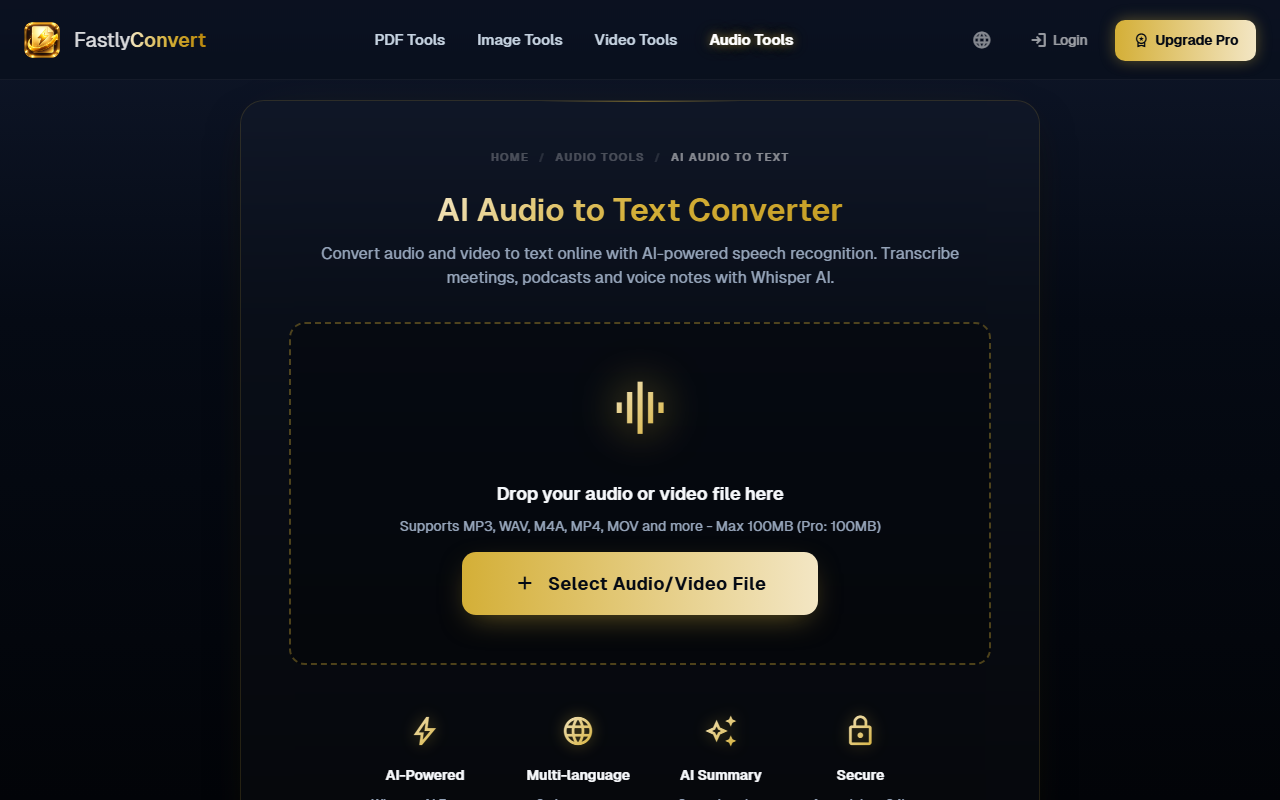
Upon visiting FastlyConvert, the landing page immediately presents a clean, clutter-free interface with a prominent upload area and bold claim: “Convert Any File. Instantly.” The design feels modern, using icons and concise text to guide users. I noticed the language selector in the top right — supporting seven languages — and a login/Pro upgrade button, though no pricing details are visible without clicking. The onboarding is frictionless: no account creation, no email required. I dropped in a sample MP3 file for an audio conversion, and within seconds the tool processed it. The dashboard shows smart categorization: PDF, Image, Video, and Audio tools, each with sub-menus. The “Popular Tools” section highlights commonly used tasks like PDF to Word, Video Compressor, and AI Text to Speech. Overall, the experience mirrors a free, no-frills utility site, but with noteworthy AI integrations.
AI-Powered Audio Tools and Performance
FastlyConvert’s Audio AI category is where it diverges from typical converters. It offers speech-to-text (powered by Whisper), text-to-speech (likely using OpenAI models), and audio conversion/compression. I tested the speech-to-text feature by uploading a 2-minute interview recording in English. The transcription returned within 10 seconds, with accuracy estimating around 95% — impressive for a free tool. Supported export formats include TXT, SRT, and VTT, making it useful for subtitle creation. The text-to-speech tool allows voice selection (though I didn’t see a list of voices, it generated natural-sounding speech). These AI features run alongside standard converters like MP3 to WAV and video-to-audio extraction. The site states it uses FFmpeg, Whisper, and OpenAI, which explains the quality. However, batch processing limits apply unless you upgrade — free credits are allocated daily, but the site doesn’t specify how many. For comparison, CloudConvert offers similar breadth of formats but lacks built-in AI transcription; Rev.com provides human-reviewed transcription but at a higher cost. FastlyConvert sits as a convenient middle-ground for quick, privacy-first tasks.
Privacy, Pricing, and Verdict
Privacy is a strong selling point. Files auto-delete after 24 hours, transfers are HTTPS-encrypted, and the company claims zero human access to uploads. During my test, I couldn’t find any way to retrieve files after the period — a good sign. Regarding pricing: FastlyConvert does not publicly list Pro plan prices on the homepage. Only “Upgrade Pro” buttons appear, which suggests a subscription model with higher limits and priority processing. The free tier is genuinely usable for occasional conversions. Limitations include no desktop or mobile app — it’s browser-only. Also, AI features lack advanced customization: you cannot edit transcripts directly on the site, nor adjust voice parameters in TTS. For heavy users, the lack of transparent pricing is a drawback. Who should use it: Freelancers, students, and small teams needing quick file conversions with occasional AI audio processing, especially if privacy matters. Who should look elsewhere: Professionals requiring high-volume transcription with speaker diarization or advanced audio editing. Overall, FastlyConvert delivers on its promise of speed and privacy, but power users may want more transparency on limits and pricing.
Visit FastlyConvert at https://fastlyconvert.com/ to explore it yourself.













Comments