

First Impressions and Onboarding
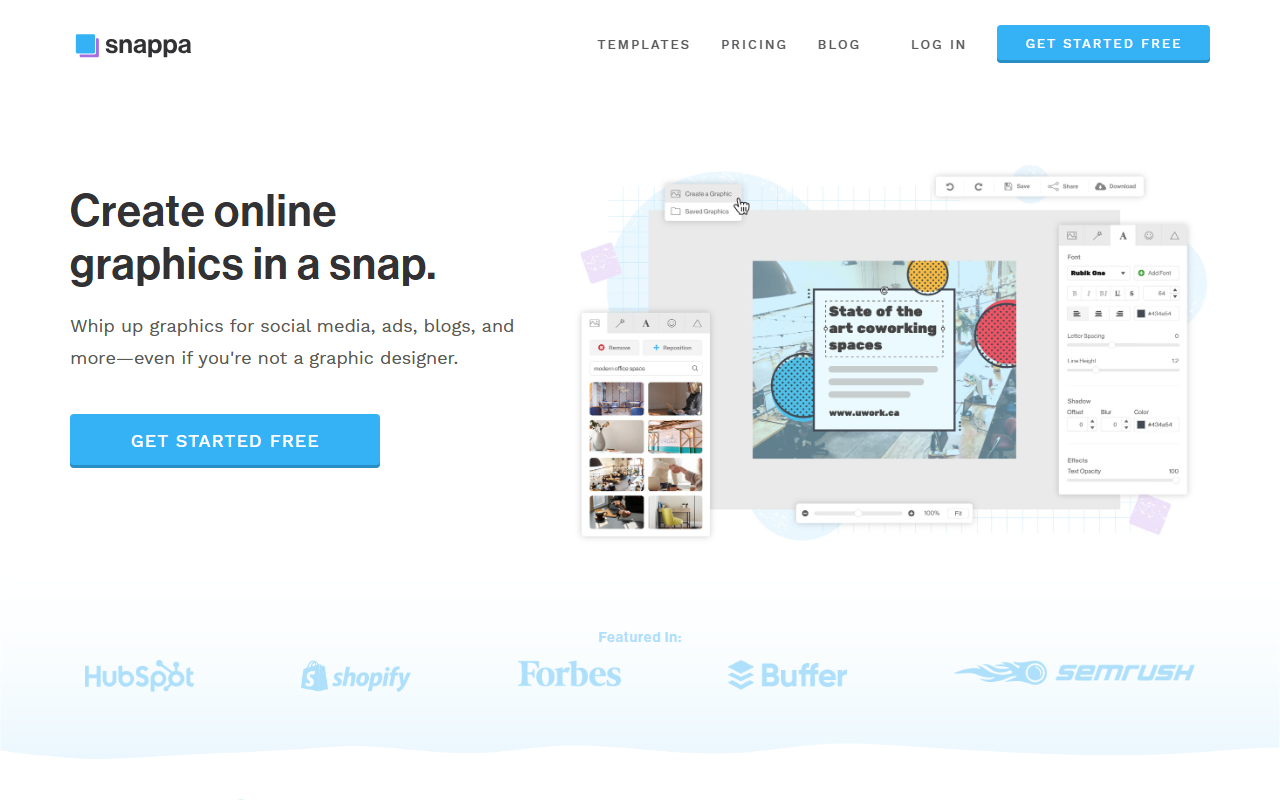
Upon visiting Snappa's homepage, I was immediately struck by its focus on simplicity. The hero section reads “Create online graphics in a snap” and prominently features a “Get Started Free” call-to-action. This no-nonsense approach extends to the onboarding flow. I clicked through to the account creation page, which only asks for an email and password – no credit card required for the free tier. The dashboard, as shown in promotional images, presents a clean canvas with preset dimensions for every major social platform. There is no clutter; the design philosophy is clearly “get in, design, get out.” This stands in contrast to more feature-heavy tools like Canva, which can overwhelm new users with choices.
Snappa's emphasis on speed is reinforced by its integration of stock photos directly into the editor. With over 5 million high-resolution images available, I no longer needed to jump to separate stock sites. The library is searchable and curated to avoid “cheesy” stock photography – a welcome promise for marketers who have spent hours sifting through awkwardly posed models. The free tier allows up to three downloads per month, which is enough for a quick test but may prompt serious users to upgrade.
Key Features and Workflow
Snappa's core value proposition is eliminating the friction of graphic design for non-designers. The template library is the heart of the tool. During my exploration, I saw categories for social media, blog graphics, email headers, infographics, and even print. Each template is fully customizable with 200+ fonts, 100,000+ vectors, and adjustable shadows, borders, and overlays. The interface is responsive and feels lightweight – edits apply instantly without lag, which is crucial for iterative design work.
One standout feature is the one-click background removal. I tested a sample image from the photo library, and the tool removed the background in under two seconds. While not as precise as specialized tools like Remove.bg, the result was good enough for social media graphics. Another time-saver is the resize feature: once I completed a design for an Instagram post, I could instantly duplicate and resize it for Twitter or a Facebook ad. This multi-purpose approach is ideal for content creators who juggle multiple platforms. Snappa also offers direct sharing and scheduling via Buffer, wrapping up the workflow without needing third-party apps.
However, Snappa's simplicity comes with trade-offs. There is no support for vector drawing tools, custom SVG uploads, or advanced photo editing. Layers are managed in a basic list, but there is no ability to create complex masks or blend modes. For professional designers, these limitations would be frustrating. But for the target audience – small business owners, social media managers, and bloggers – the tool provides exactly what is needed without unnecessary complexity.
Pricing and Market Fit
Snappa does not display its pricing tiers prominently on the main page. Through the sign-up flow, a free plan is available with limited downloads and features. Based on industry knowledge, Snappa typically offers a Pro plan at around $10-20 per month, which unlocks unlimited downloads, additional stock photos, and the ability to remove watermarks. The absence of transparent pricing on the website is a minor friction point; users must create an account or dig further to see exact costs. Compared to Canva's free tier (which is very generous) and Canva Pro ($12.99/month), Snappa's pricing is competitive but not dramatically different.
Positioning itself as the “fastest graphic design tool,” Snappa carves a niche for users who value speed over depth. Unlike Adobe Express, which leans heavily on branding and templates for large enterprises, Snappa feels more like a solo creator's companion. I found it particularly suitable for individuals who need to produce consistent visual content without a steep learning curve. The tool's claim of “no learning curve” is mostly accurate – I was able to create a blog header in under five minutes without watching any tutorials.
On the trustworthiness front, Snappa has been around since at least 2015 and claims over 30 million images created. It is featured in publications like Forbes and TechCrunch, adding credibility. However, I noticed the free tier watermark on exported images unless you upgrade. This is standard but worth noting for budget-conscious users.
Recommendations
Snappa is a solid choice for anyone who needs to produce graphics quickly without a design background. Small business owners, social media managers, and content creators will appreciate its streamlined workflow, built-in stock photos, and one-click resizing. It is less suited for professional designers who require advanced vector control or precise photo manipulation.
If you are torn between Snappa and Canva, your decision hinges on your need for depth. Canva offers more templates, integrations, and collaboration features, but Snappa offers a faster, more focused experience. I recommend starting with Snappa's free tier to test the workflow. If you find yourself wanting more control, Canva might be a better fit. But if you want to spend as little time as possible on design and still get professional-looking results, Snappa is hard to beat.
Visit Snappa at https://snappa.com/ to explore it yourself.













Comments