

First Impressions and Interface
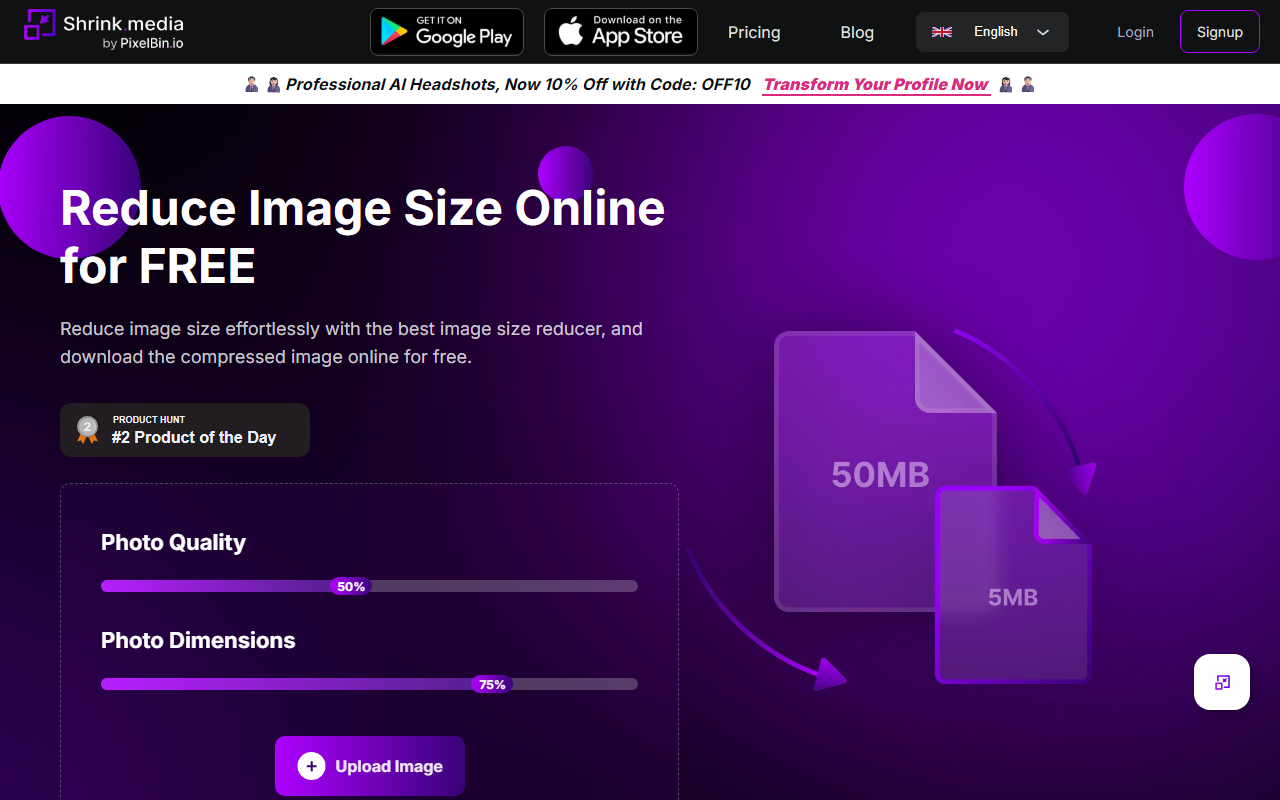
Upon visiting Shrink.media, I was greeted by a clean, minimal dashboard with a prominent upload area and dual sliders for Photo Quality and Photo Dimensions. The onboarding flow is straightforward: you either drag and drop an image or paste a URL, and the tool immediately compresses it. I tested with a 23 MB PNG file—the interface clearly showed a before-and-after comparison, with the compressed version dropping to 5 MB at 750x350 dimensions. The responsive design worked well on both desktop and mobile, and the site even prompts you to download a free mobile app from the Google Play Store. The homepage also highlights a new AI Editor, but that appears to be a separate product under the same parent company, not a core part of Shrink.media.
Performance and Compression Quality
Shrink.media uses what it calls “intelligent compression technique,” and from my tests, the results are impressive. The compression is lossy but visually near-lossless—I could barely see the difference between original and compressed images side by side. The slider lets you adjust quality from 0% to 100% and dimensions from 1% to 100% of the original, giving fine control. The tool supports PNG, JPEG, JPG, WebP, and HEIC, but limits uploads to 5000x5000 pixels. A major limitation is the lack of batch processing; each image must be compressed one at a time. For power users, this can be tedious. However, for quick, single-image compression, the speed is excellent—my 23 MB file was processed in under three seconds.
Pricing and Value
Shrink.media is currently free to use, with no hidden paywalls found during testing. The site mentions a 30% discount on annual plans alongside the AI Editor promotion, but specific pricing tiers are not publicly listed on the main page. This suggests the core compression tool will remain free, while advanced features may require a subscription. Compared to alternatives like TinyPNG (which offers batch upload and a plugin but limits free uploads) and CompressJPEG (free but less granular control), Shrink.media stands out with its simple slider-based interface and mobile app. It is ideal for web developers looking to quickly optimize a few images, social media managers needing fast compression, or casual users with limited storage.
Verdict: Who Should Use Shrink.media?
Shrink.media excels at what it promises: effortless, high-quality image compression with minimal friction. Its strengths are speed, ease of use, and support for modern formats like WebP and HEIC. The lack of batch processing and a 5000x5000 pixel limit are real drawbacks for professionals handling large volumes or high-resolution assets. I recommend Shrink.media for anyone needing a quick, free way to shrink image file sizes without sacrificing visual fidelity. For batch workflows, consider TinyPNG's plugin. Overall, it is a solid tool that delivers exactly as advertised.
Visit Shrink.media at https://shrink.media/ to explore it yourself.













Comments