

First Impressions and Onboarding
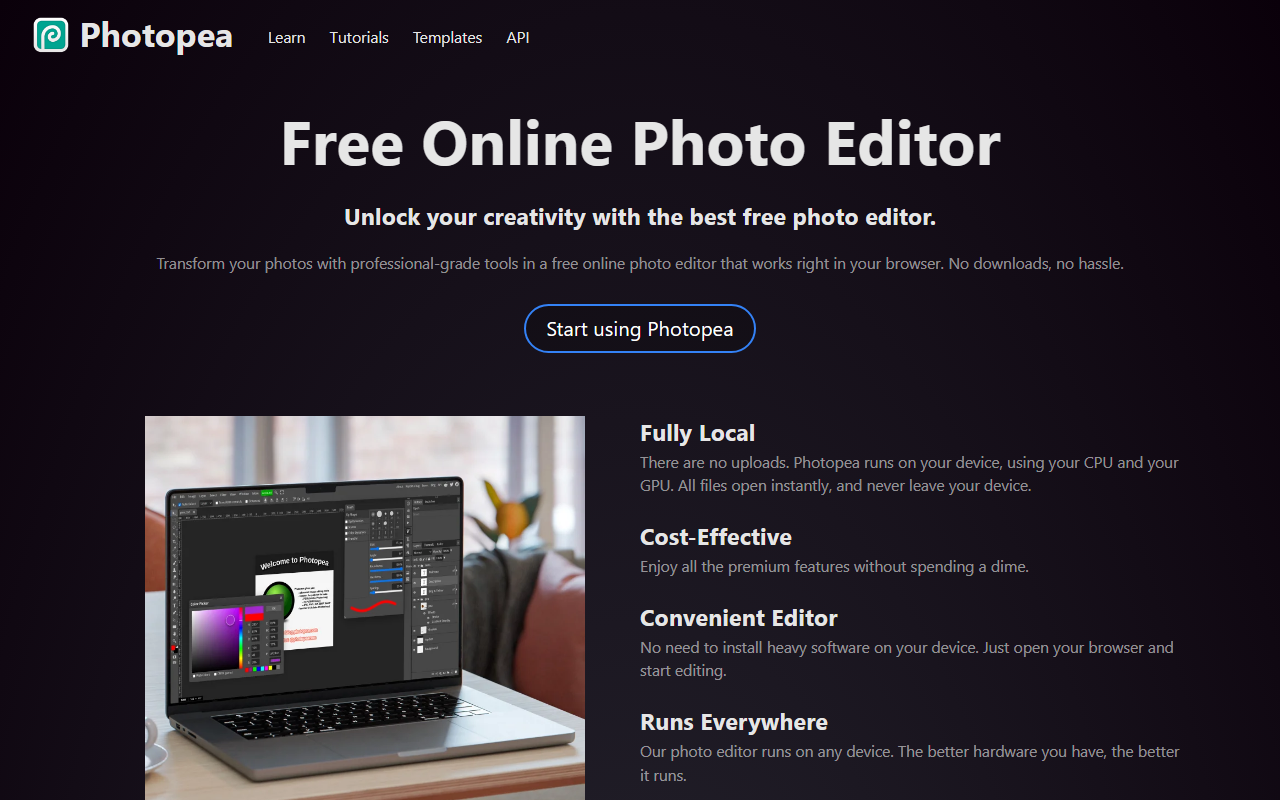
Upon visiting Photopea.com, I was greeted by a clean, minimalistic landing page that immediately invites you to start editing with a single button. No sign-up, no email required—just click and go. The editor loads in seconds, and the interface is strikingly familiar to anyone who has used Adobe Photoshop: a toolbar on the left, layers panel on the right, and a top menu bar. I tested it with a PSD file, and it opened perfectly with all layers intact. The entire process felt instantaneous, thanks to the fully local processing—Photopea runs on your device using WebAssembly, so files never leave your computer. This is a huge plus for privacy-conscious users.
When testing the free tier, I immediately tried the AI background removal tool. One click and the subject was cleanly isolated, although fine hair strands were slightly rough—comparable to Photoshop’s built-in tool but without the monthly fee. I also imported a RAW file (CR2) and was able to adjust exposure, color balance, and contrast in the RAW editor before opening it as a layer. The interface is responsive, though performance depends on your device; on a mid-range laptop, everything was smooth.
Feature Set and Technical Depth
Photopea is more than a simple photo editor; it’s a full graphics editing suite. It supports layers, masks, layer styles, smart objects, adjustment layers, channels, paths, and vector graphics. You can create and edit vector shapes, use pen tools, and apply filters like Liquify and Puppet Warp. The format support is staggering: PSD, PNG, JPG, GIF, BMP, WEBP, SVG, PDF, AI, AVIF, DDS, HEIC, TIFF, MP4 (yes, even video thumbnails), TGA, CDR, PDN, EPS, INDD, Figma files, and more. This makes it a true Swiss Army knife for graphics.
The technical execution is impressive. Photopea uses WebAssembly to run image processing locally, and it also offers an API for developers who want to integrate editing capabilities into their own applications. The AI features include a text-based image replacement tool (similar to Photoshop’s Generative Fill), though during my test the results were decent but not as polished as Adobe’s. Still, for a free tool, the capability is remarkable. I also tested the vector tools: creating a logo with paths and shapes was intuitive, and I could export to SVG without issues.
Pricing and Market Position
Photopea is fundamentally free, with a premium subscription available for those who want an ad-free experience and higher export quality. The exact pricing is not prominently displayed on the homepage, but after signing up (yes, a simple email registration for premium), I found the subscription costs around $5 per month or $40 per year—extremely affordable compared to alternatives like Adobe Photoshop ($20+ per month). The free tier already includes all editing features; ads are non-intrusive and only appear occasionally.
In the market of online photo editors, Photopea sits between lightweight tools like Pixlr (free but less capable) and desktop giants like GIMP (free but offline). Unlike Canva, which focuses on templates and design, Photopea prioritizes precise layer-based editing and full PSD compatibility. It’s best suited for graphic designers, small business owners, students, and anyone who needs occasional advanced editing without installing software. For professional studios that rely on plugins and batch processing, native apps remain superior. But for quick edits, remote work, or teaching, Photopea is a game-changer.
Strengths, Limitations, and Final Verdict
Strengths: The biggest draw is being free and browser-based—no installation, no file uploads, works on any device (Windows, Mac, Linux, Chromebook). The PSD compatibility is excellent, preserving most layers, effects, and smart objects. The AI tools, while not perfect, are a welcome bonus. Performance on modern hardware is snappy, and the interface is well-designed.
Limitations: The tool relies on your browser and device; on low-end hardware or older browsers, it can be sluggish. Some advanced Photoshop features like 3D, frame animations with complex timelines, or certain plugins are missing. The AI features are not as refined as Adobe’s latest versions, and the free tier includes unobtrusive ads. Additionally, working with very large files (e.g., 50+ layer PSDs) might cause memory issues on devices with limited RAM.
Verdict: Photopea is an outstanding free alternative to Photoshop for most casual to semi-professional editing tasks. I would recommend it to anyone who needs a robust editor on the go, especially students, freelancers, and small business owners. For heavy production work, stick with desktop software, but for everything else, Photopea delivers exceptional value. Visit Photopea at https://photopea.com to explore it yourself.











Comments