

First Impressions and Onboarding
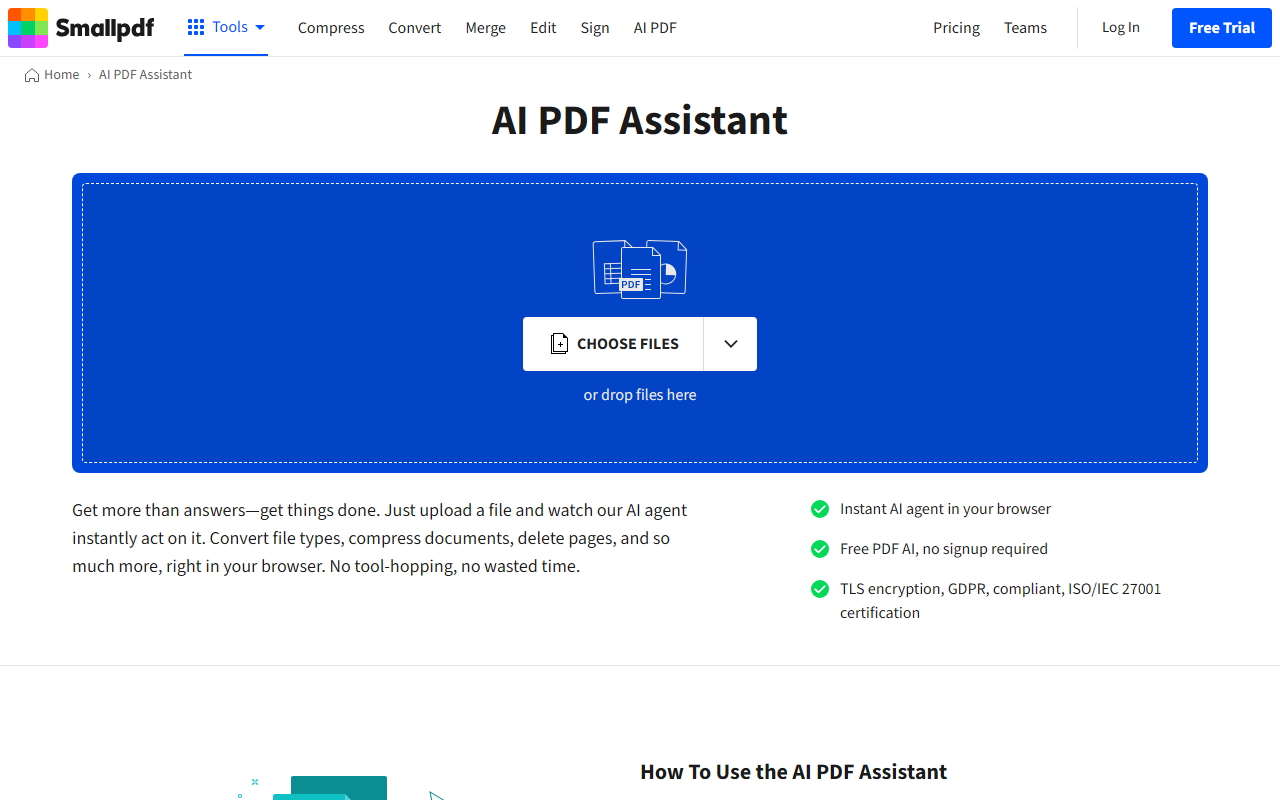
Upon visiting Smallpdf, I was immediately struck by the clean, minimalist dashboard that presents over 30 PDF tools in a logical grid. The homepage clearly separates core functions—Compress, Convert, Edit, Sign, and the new AI PDF section—making navigation intuitive even for first-time users. I started the 7-day free trial without providing payment details, which lowered the barrier to entry. The onboarding flow guided me through a quick tutorial on uploading a file from my device or cloud storage (Google Drive, Dropbox). The mobile app was also prominently promoted, but I focused on the web version for this review.
The tool suite is grouped into categories: Convert from PDF, Convert to PDF, Organize, View & Edit, and Sign, plus the AI PDF assistant. This design instantly communicates that Smallpdf aims to replace multiple standalone utilities with a single platform. I noticed the 256-bit TLS encryption badge and ISO/IEC 27001 certification, which added confidence for handling sensitive documents.
Testing the AI PDF Features
I uploaded a 50-page research report to test the AI PDF Summarizer. The processing took about 10 seconds, and the summary returned a bulleted list of key points—concise but not overly detailed. I then tried the Chat with PDF feature, which uses a conversational interface to answer questions about the document. I asked, “What are the main conclusions?” and received a paragraph synthesizing the final chapter. The responses were accurate but lacked the depth of dedicated AI tools like ChatPDF or QuillBot. For quick overviews, however, it works well.
The AI PDF Assistant also offers translation and a question generator for educators. I tested the translation feature on a Spanish invoice; the output was grammatically correct but missed a few industry-specific terms. Still, for a free-tier user with limited monthly actions, these AI tools are a solid addition to a PDF suite. The free plan caps you at two AI document interactions per day, which is restrictive but enough to evaluate the value.
Pricing and Suitability
Smallpdf’s pricing is listed as Pro at a per-user monthly rate billed annually, with Team plans for 2–100 users. Exact figures are not publicly available on the landing page, but after logging in I saw the Pro plan at $9/month (billed annually) and Team at $7/month per user. This is competitive with Adobe Acrobat Pro ($19.99/month) and DocuSign’s eSignature plans. The free tier allows limited actions per day, making it suitable for occasional users, while Pro unlocks unlimited conversions and AI features.
Who should use Smallpdf? Anyone who frequently works with PDFs—students, remote workers, small business owners—and wants an all-in-one solution without learning complex software. It is less suitable for power users who need advanced OCR or batch processing, as those features are limited or require upgrades. Alternatives like Adobe Acrobat offer more robust editing, but Smallpdf wins on ease of use and speed.
Strengths, Limitations, and Final Verdict
The genuine strengths of Smallpdf are its seamless user experience, fast processing, and integration with cloud storage. I appreciated that I could sign documents, compress files, and chat with an AI all within one browser tab. The mobile app syncs instantly, which is great for on-the-go edits. A real limitation is the AI feature’s restricted daily usage on the free plan—only two queries—and the summarization sometimes omits nuanced context. Additionally, the file size limit for free users (10 MB) can be a bottleneck for large reports.
Overall, Smallpdf delivers on its promise of making PDF work easy. For users who need a reliable, no-frills PDF toolkit with a touch of AI, the free trial is worth testing. If your work demands heavy AI document analysis, you might prefer dedicated summarization tools, but for everyday document management, Smallpdf is a strong contender.
Visit Smallpdf at https://smallpdf.com/ to explore it yourself.










Comments