
First Impressions and Onboarding
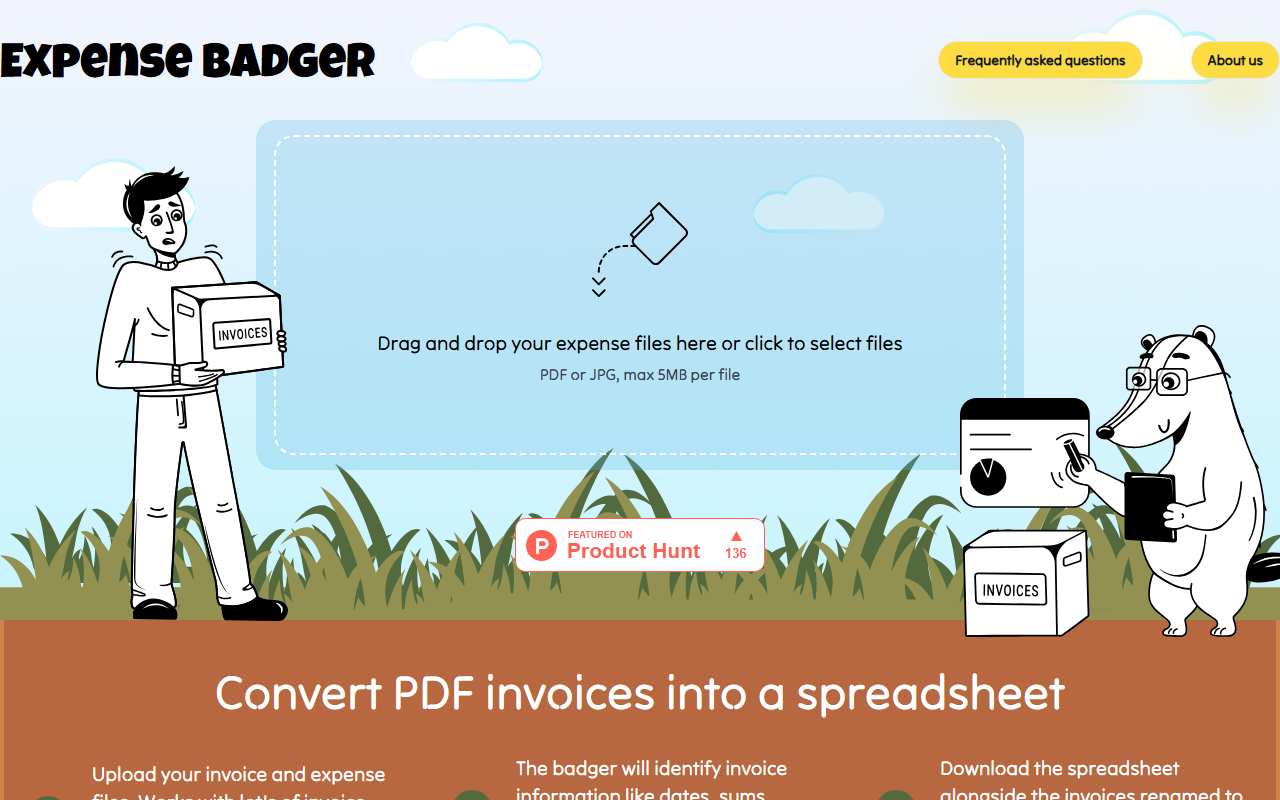
Upon visiting the ExpenseBadger website, the interface is minimal and focused. The homepage presents a single drag-and-drop area for uploading files, with a clear message: “Begin by uploading your expense files as a JPG or PDF first.” I tested the free tier by dragging a PDF invoice onto the upload zone. The site immediately prompted me to enter my email address and accept the terms. After submitting, a cheerful animation appeared, claiming the “badger” was making tea and would start processing soon. An email notification arrived within a minute, containing a link to download the generated Excel spreadsheet and the renamed file. The entire workflow was frictionless, though the reliance on email for results—rather than an in-browser download—may feel slightly outdated to some users.
Core Features and Workflow
ExpenseBadger solves a specific problem: converting unstructured invoice or receipt images into structured data in Excel, while simultaneously renaming the original files for better organization. The tool extracts fields like date, currency, total amount, vendor name, and invoice number. It supports PDF and JPG files up to 5MB each. During my test, the extraction was accurate: the spreadsheet correctly captured the vendor “Joe’s Computer Hardware,” the invoice date, and the total amount in USD. The file rename feature is particularly powerful—users can customize the output filename using Liquid template syntax, choosing from variables like {{ Date | date: "%Y-%m-%d" }}, {{ VendorName }}, and {{ InvoiceNr }}. This level of customization is rare among similar tools and appeals to users who need strict naming conventions for accounting software integration.
Pricing and Value Proposition
ExpenseBadger offers a simple pay-as-you-go model. Processing a single file is free (subject to a daily limit). For batch processing, a $10 USD package handles up to 100 files, with additional files costing $0.10 each. Results are stored securely for 7 days. This pricing is competitive when compared to alternatives like Dext (starting at $15/month for limited documents) or Hubdoc (bundled with Xero subscriptions). However, ExpenseBadger lacks a subscription plan for high-volume users and does not offer integrations with accounting software like QuickBooks or Xero—exports are manual Excel downloads. The developer also does not publicly disclose which underlying AI model powers extraction, though accuracy in my brief test was on par with more expensive solutions.
Who Should Use ExpenseBadger?
This tool is best suited for freelancers, solo entrepreneurs, and small business owners who handle a modest volume of invoices and want a lightweight way to organize expenses without committing to a monthly subscription. Accountants and bookkeepers managing multiple clients may find the per-file pricing economical for occasional batch tasks. However, if you need real-time processing, mobile capture, or direct integration with cloud accounting platforms, you should look at Zoho Expense or Expensify. A limitation I observed is the lack of an explicit confidence score display for each extracted field within the spreadsheet; the confidence values are only usable in the rename template. Additionally, the service relies on an email-based delivery loop, which can introduce delays if the user is impatient. Nevertheless, for the price and simplicity, ExpenseBadger delivers on its promise. I recommend trying the free single-file option—it took less than two minutes to experience the full workflow.













Comments